1. Module Overview
Event CRM adds a professional event sales and registration layer to Perfex CRM. Administrators can create events, configure ticket types, publish events publicly or only to logged-in customers, collect buyer and attendee details, apply coupon discounts, generate Perfex invoices, and validate tickets during event check-in.
The module is designed around two event experiences: a public-facing event website for open events and a customer portal experience for customers who are already logged into Perfex CRM.
eventpro_crm. After activation, the main admin area is available under Event CRM in the Perfex admin sidebar.2. Why This Module Is Helpful
Events, tickets, attendees, orders, coupons, invoices, and check-ins are managed from one module instead of scattered spreadsheets and manual lists.
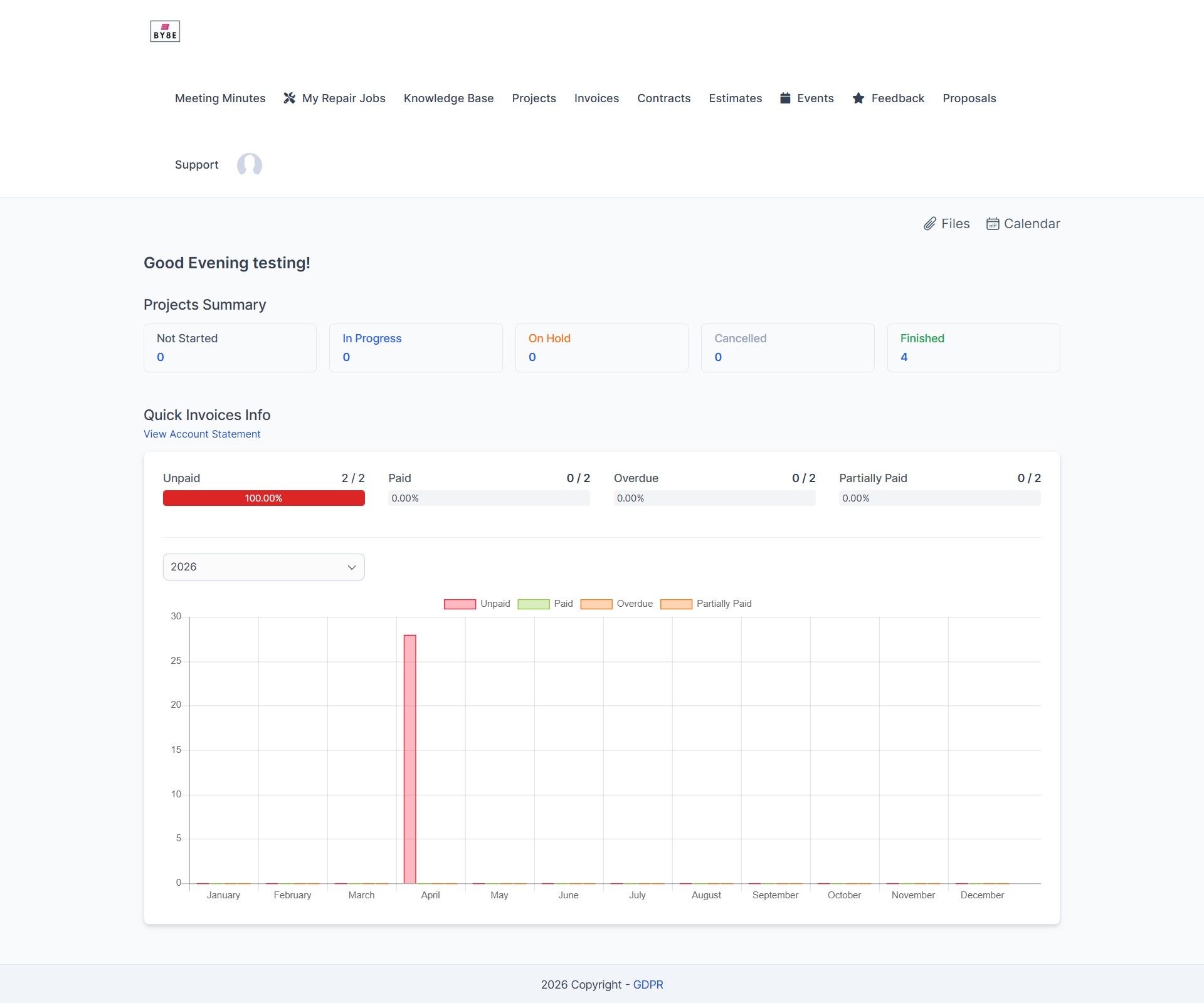
Logged-in customers can browse events, buy tickets, review their tickets, and return to the main portal easily.
Customer purchases can generate Perfex invoices automatically, keeping event revenue connected with the existing sales system.
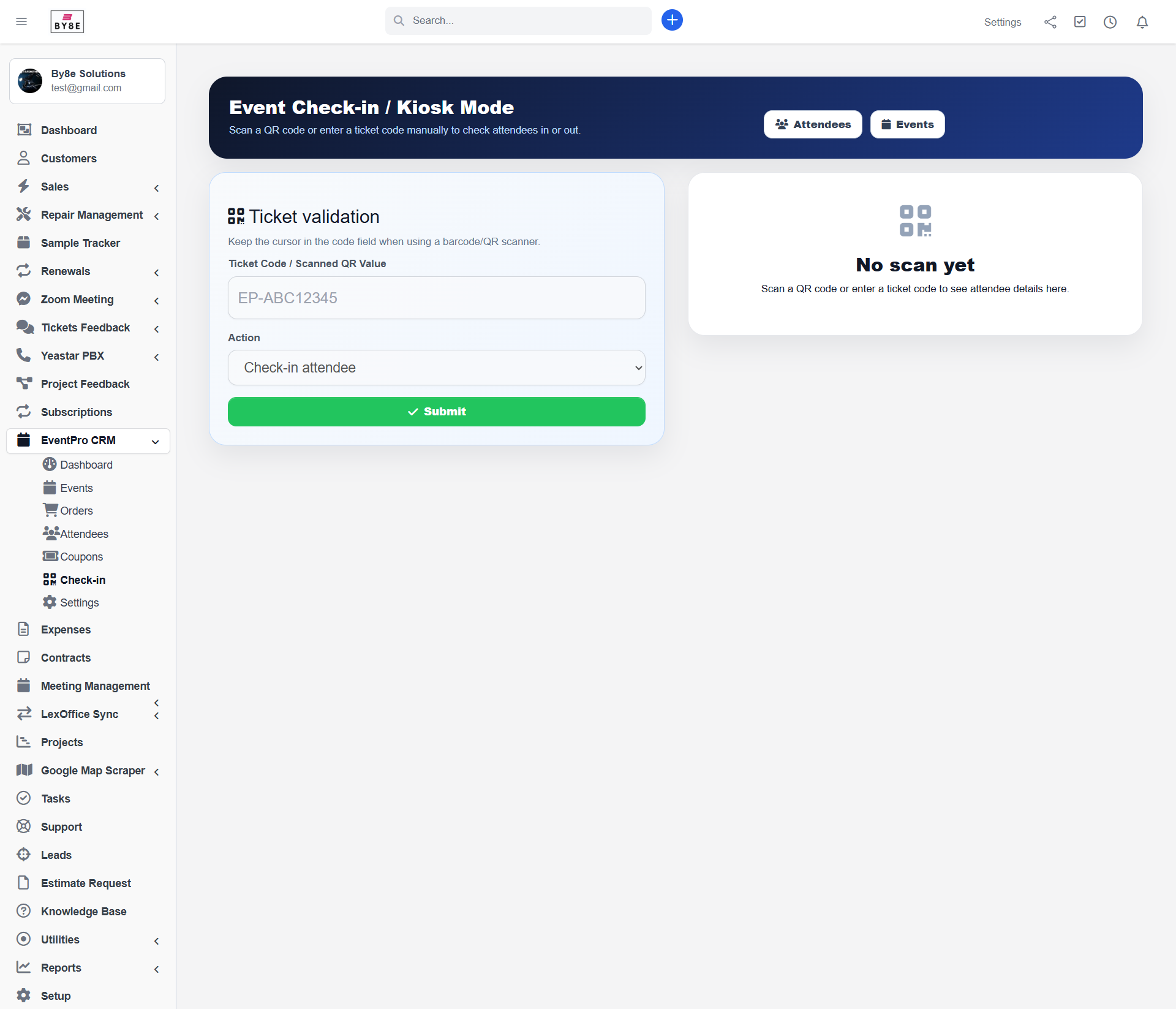
Staff can validate ticket codes manually or through QR/barcode scanner input, then check attendees in or out.
3. Best Use Cases
Sell seats for client trainings, onboarding sessions, paid consultations, or workshops.
Manage registrations, attendee data, group bookings, and printable tickets.
Publish customer-only or internal workflow events while keeping private events hidden.
4. Feature List
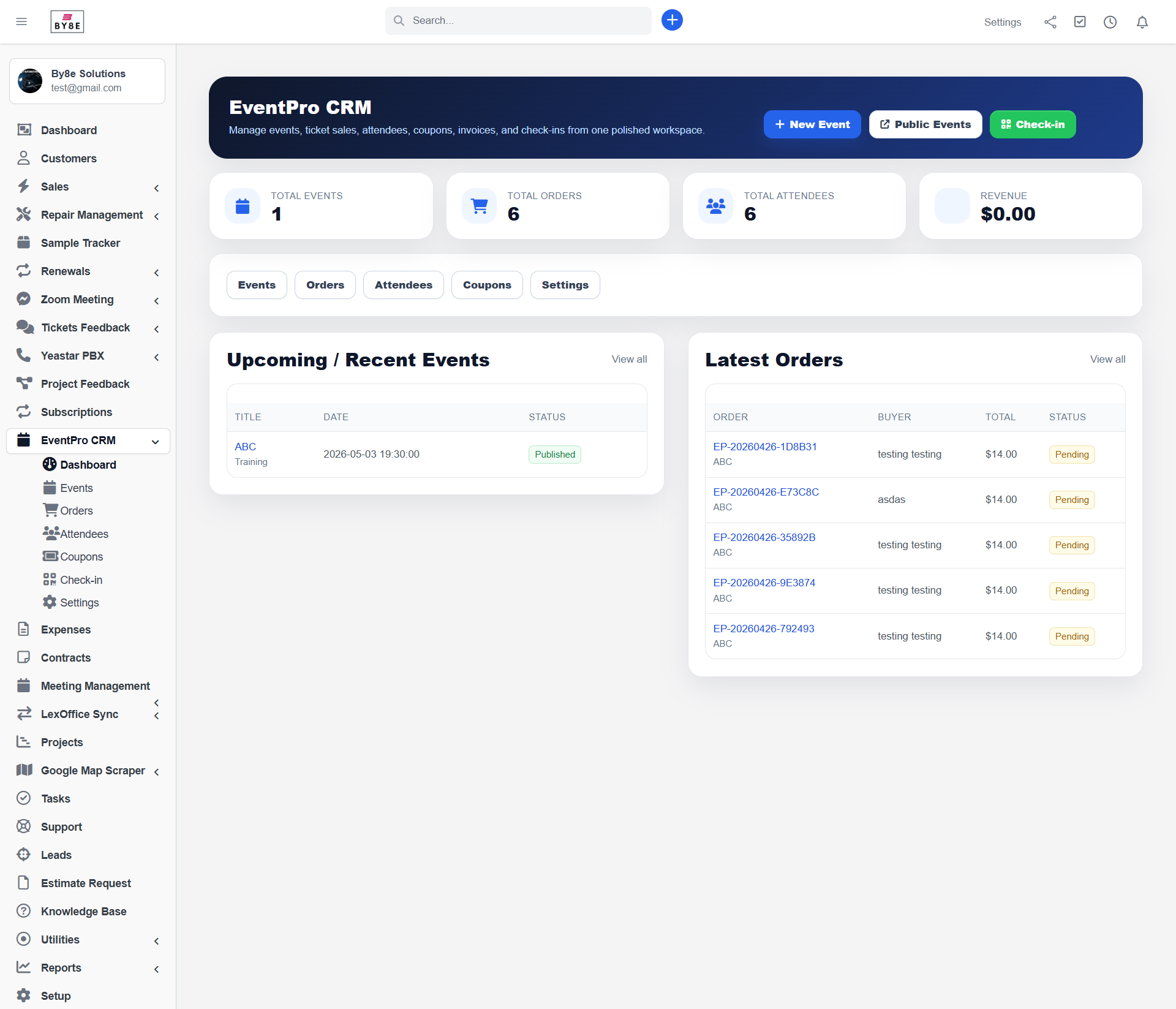
- Event CRM dashboard with event, order, attendee, and revenue summary cards.
- Admin sidebar menu with Dashboard, Events, Orders, Attendees, Coupons, Check-in, and Settings.
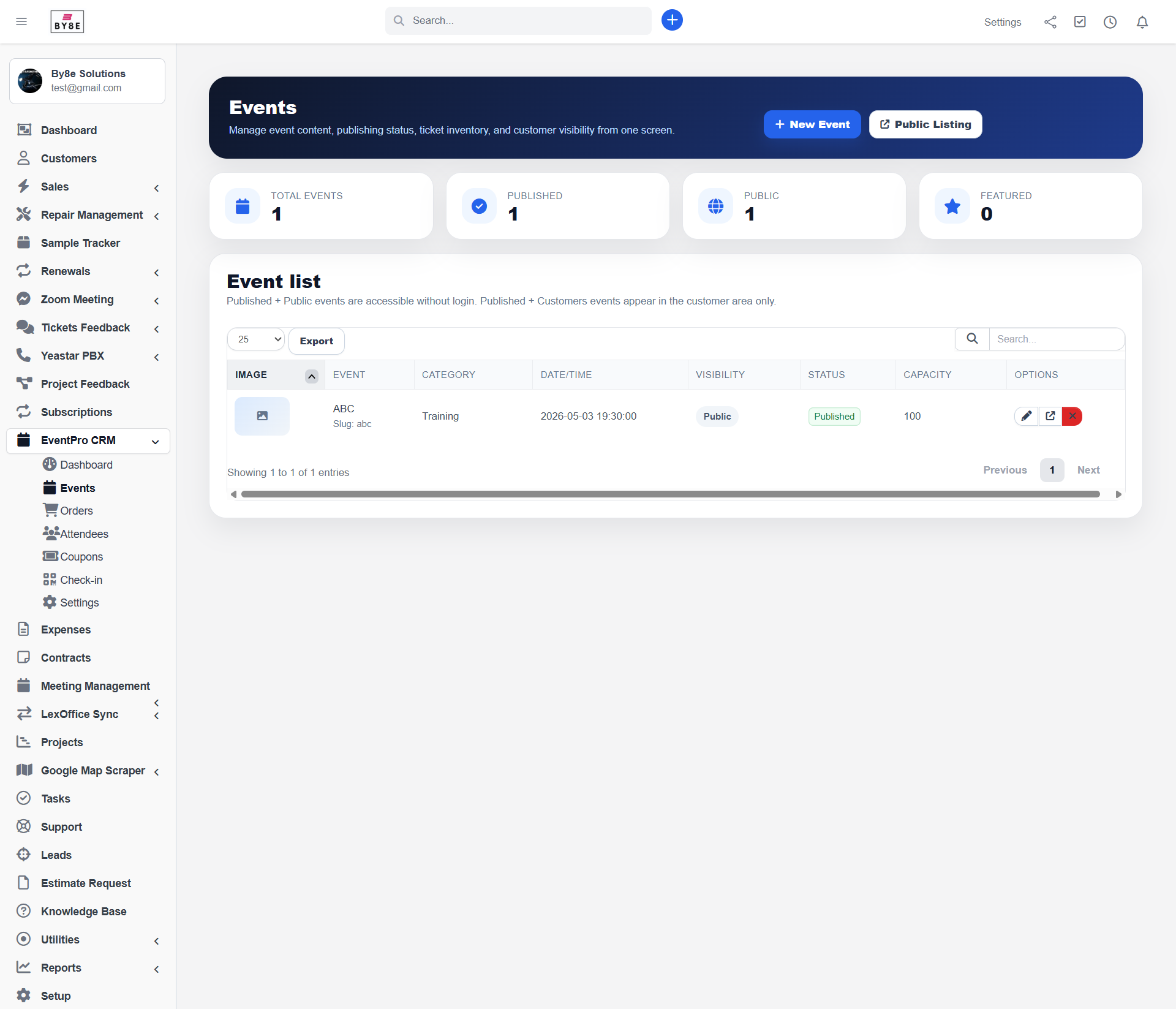
- Create and edit events with title, category, schedule, location, online URL, description, visibility, status, capacity, group registration, and featured flag.
- Main event image and event gallery support.
- Multiple ticket types per event.
- Ticket price, tax rate, quantity, min quantity, max quantity, description, and active/inactive status.
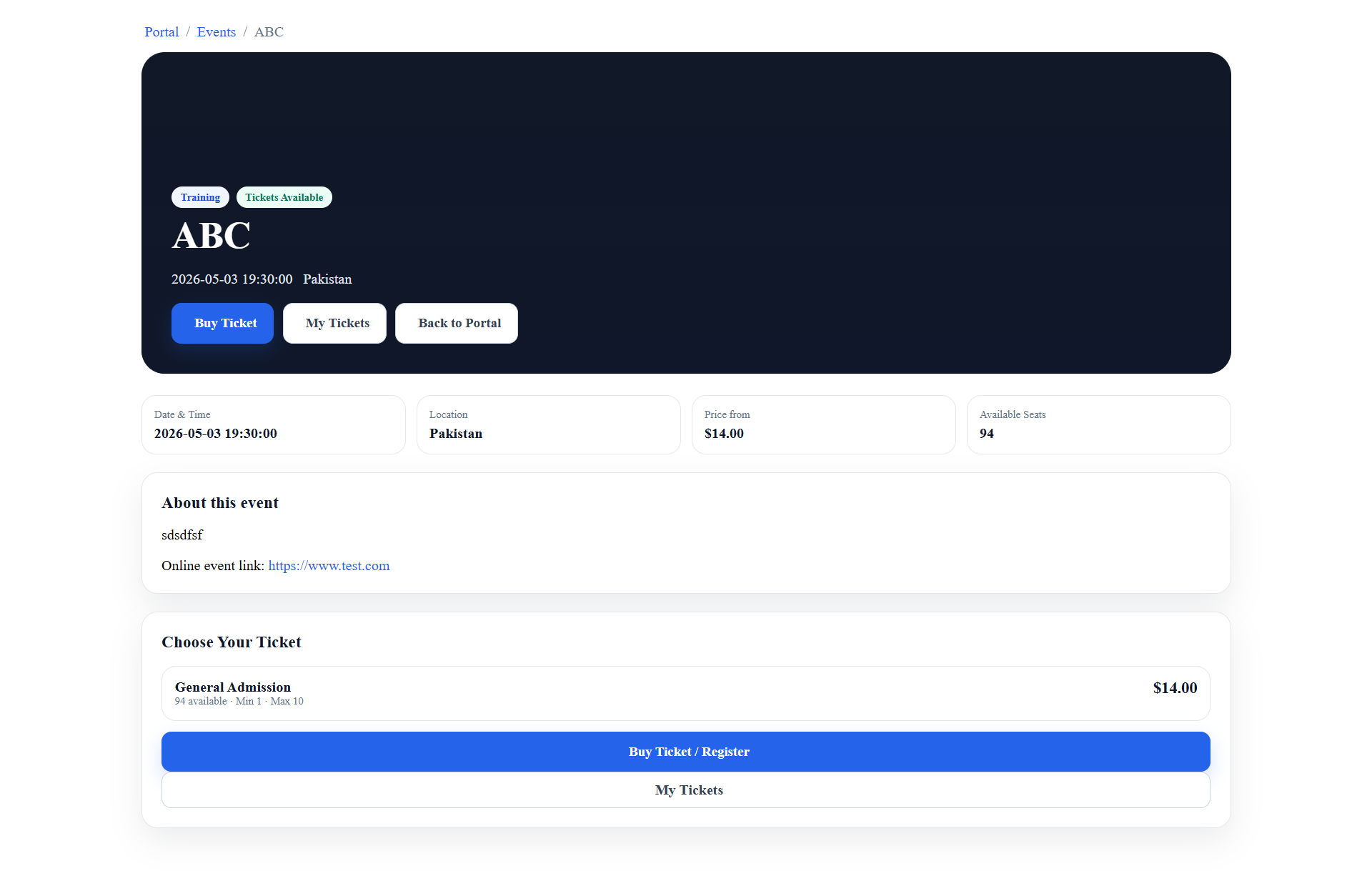
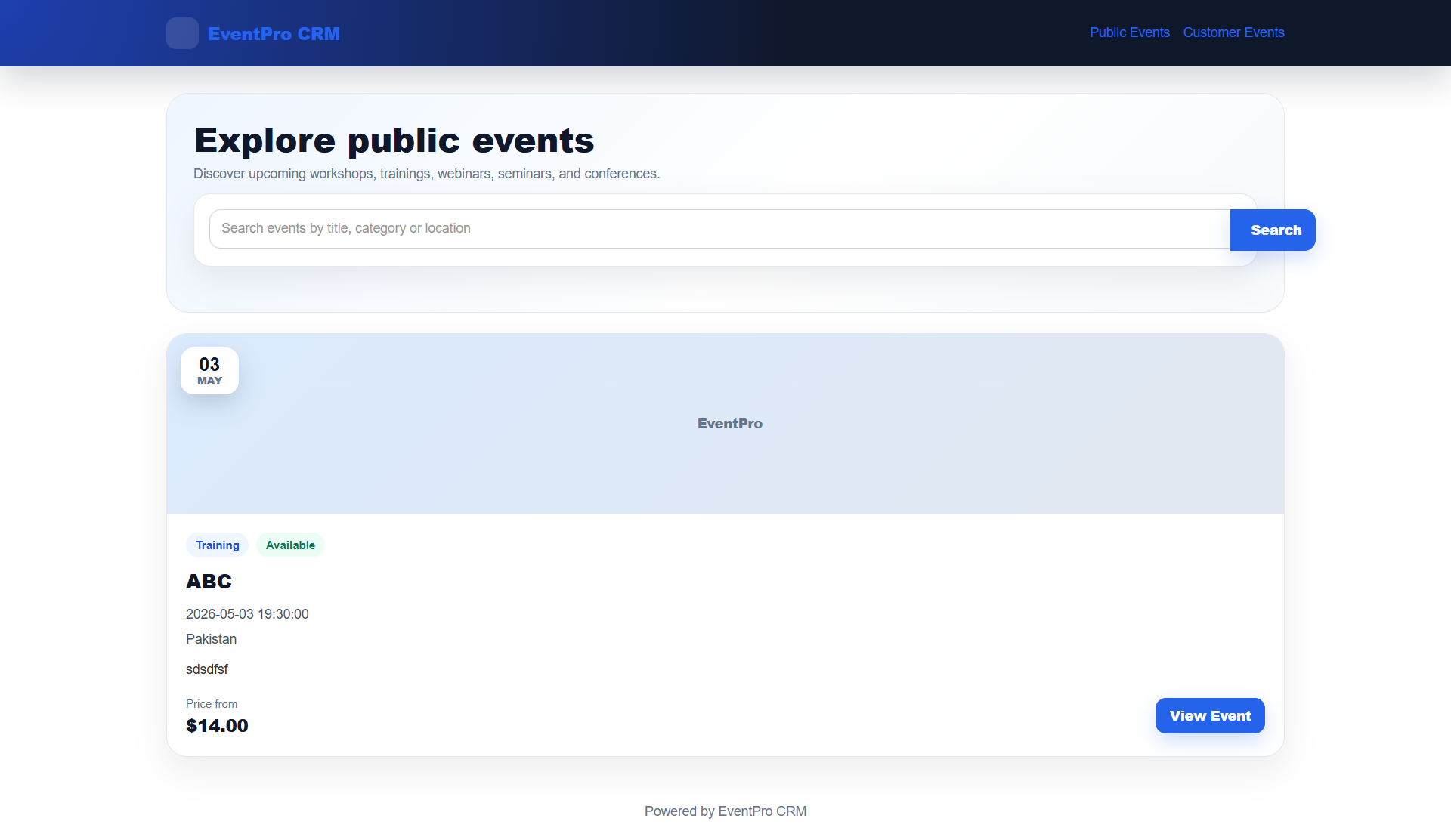
- Public event listing and event detail pages.
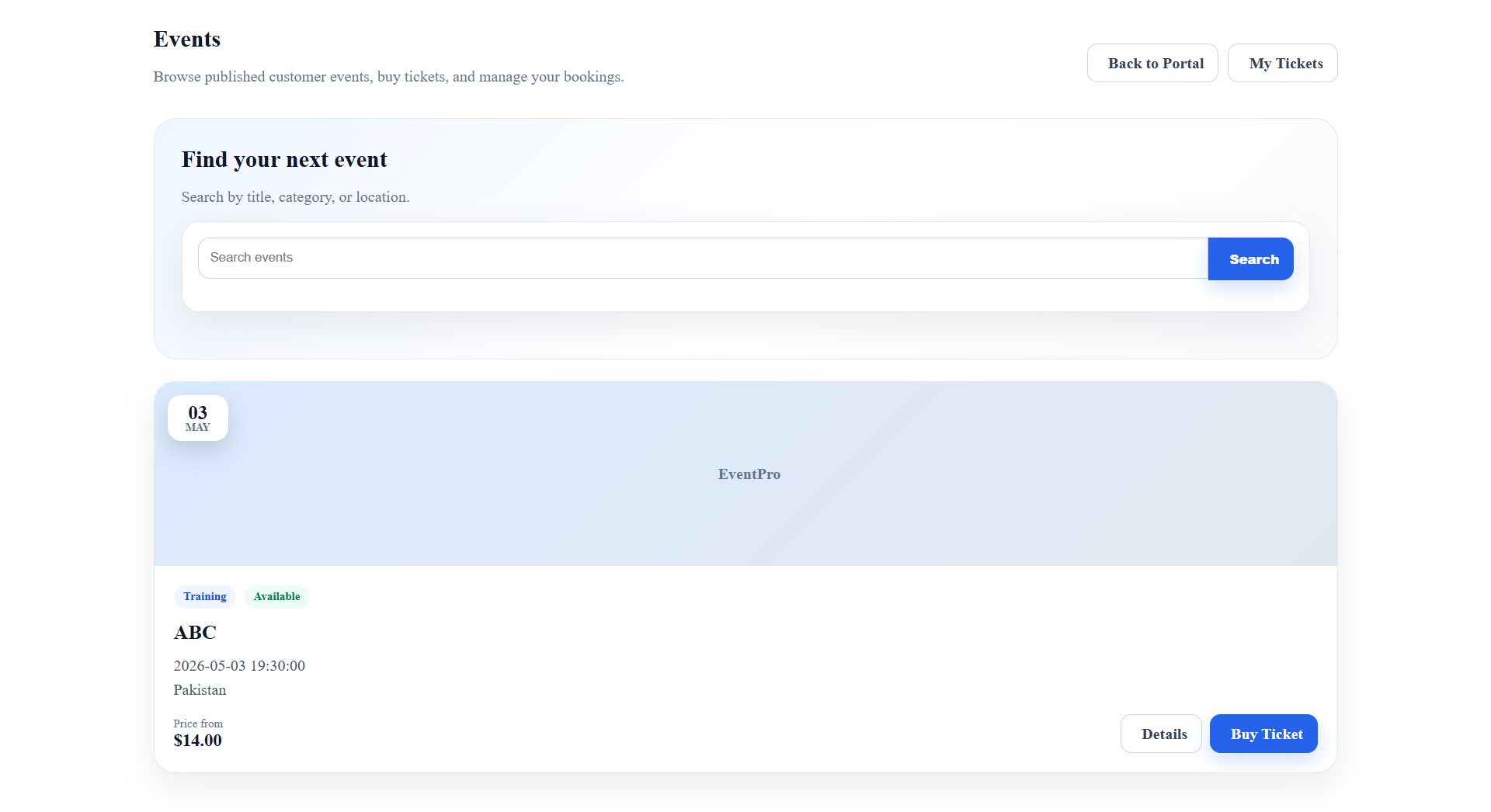
- Customer portal event listing and event detail pages.
- Customer checkout with buyer auto-fill where profile data is available.
- Expanded country calling-code dropdown for buyer and attendee phone fields.
- Step-style checkout flow with buyer details, ticket selection, attendees, coupon, and order summary.
- Group attendee registration based on selected ticket quantity.
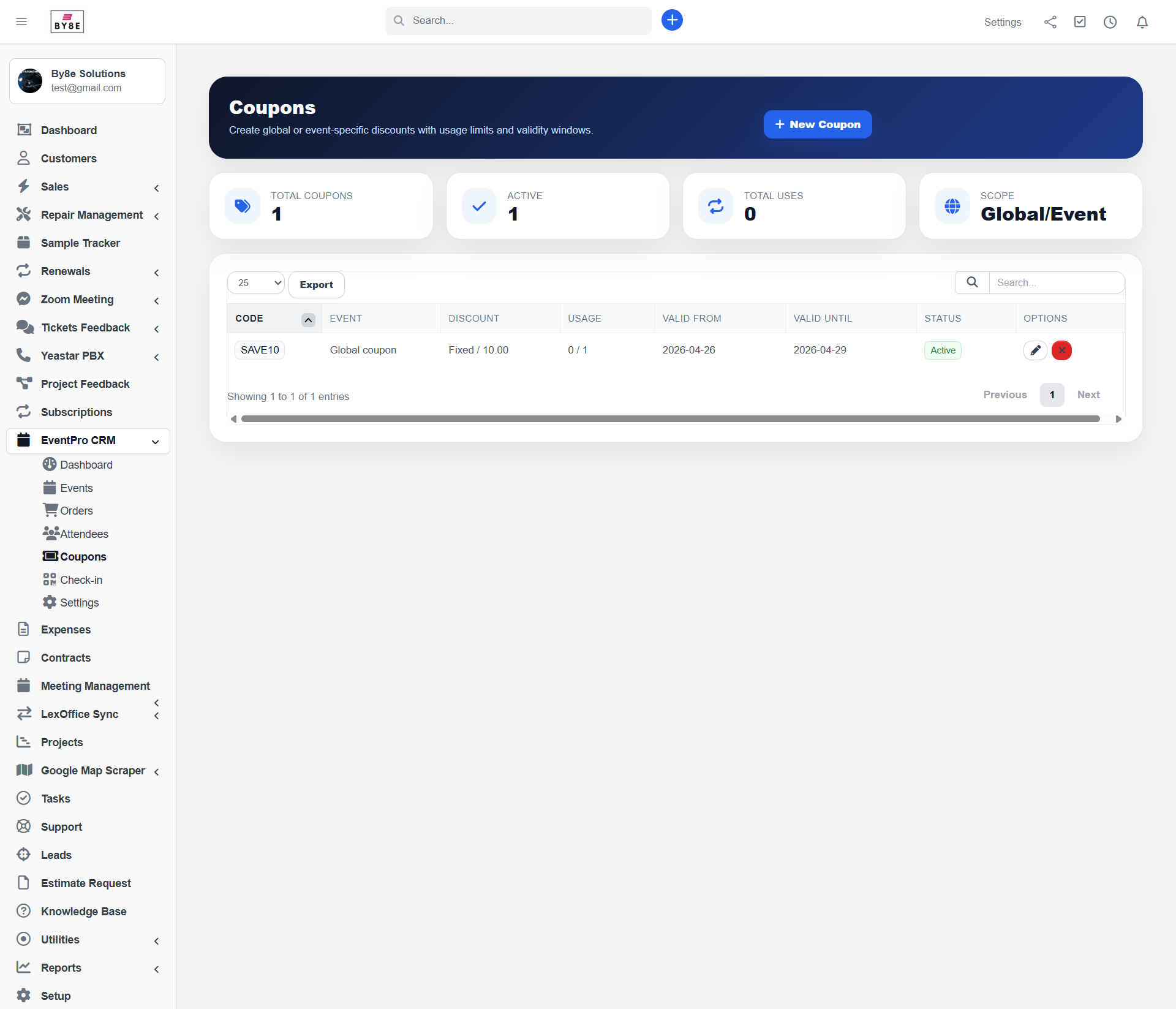
- Coupon management with fixed and percentage discounts.
- Coupon usage limits, event-specific coupons, global coupons, date windows, and active/inactive status.
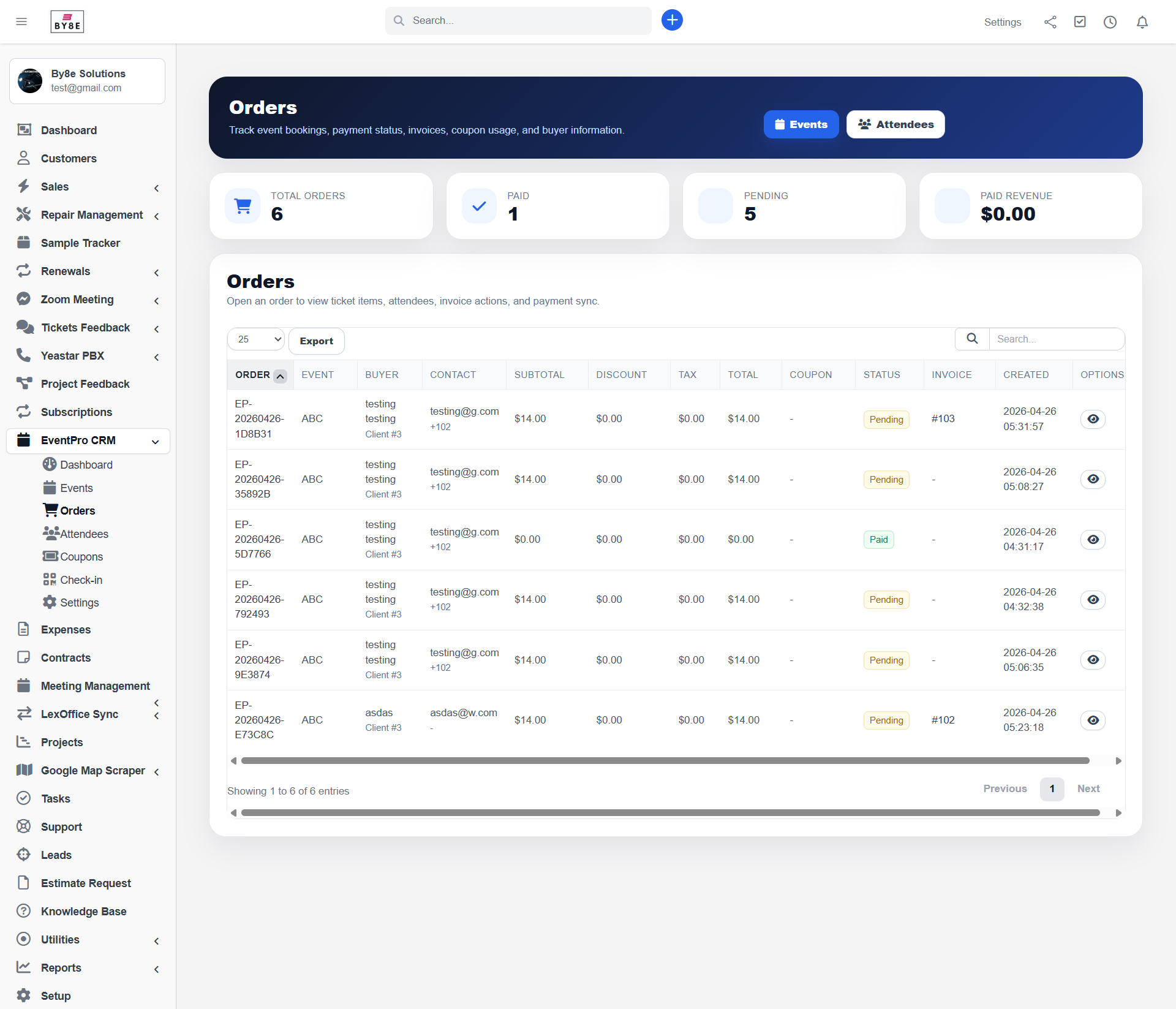
- Automatic order creation with buyer, ticket, coupon, attendee, and total details.
- Automatic Perfex invoice generation for customer purchases where invoice settings allow it.
- Fallback client setting for guest invoice workflows.
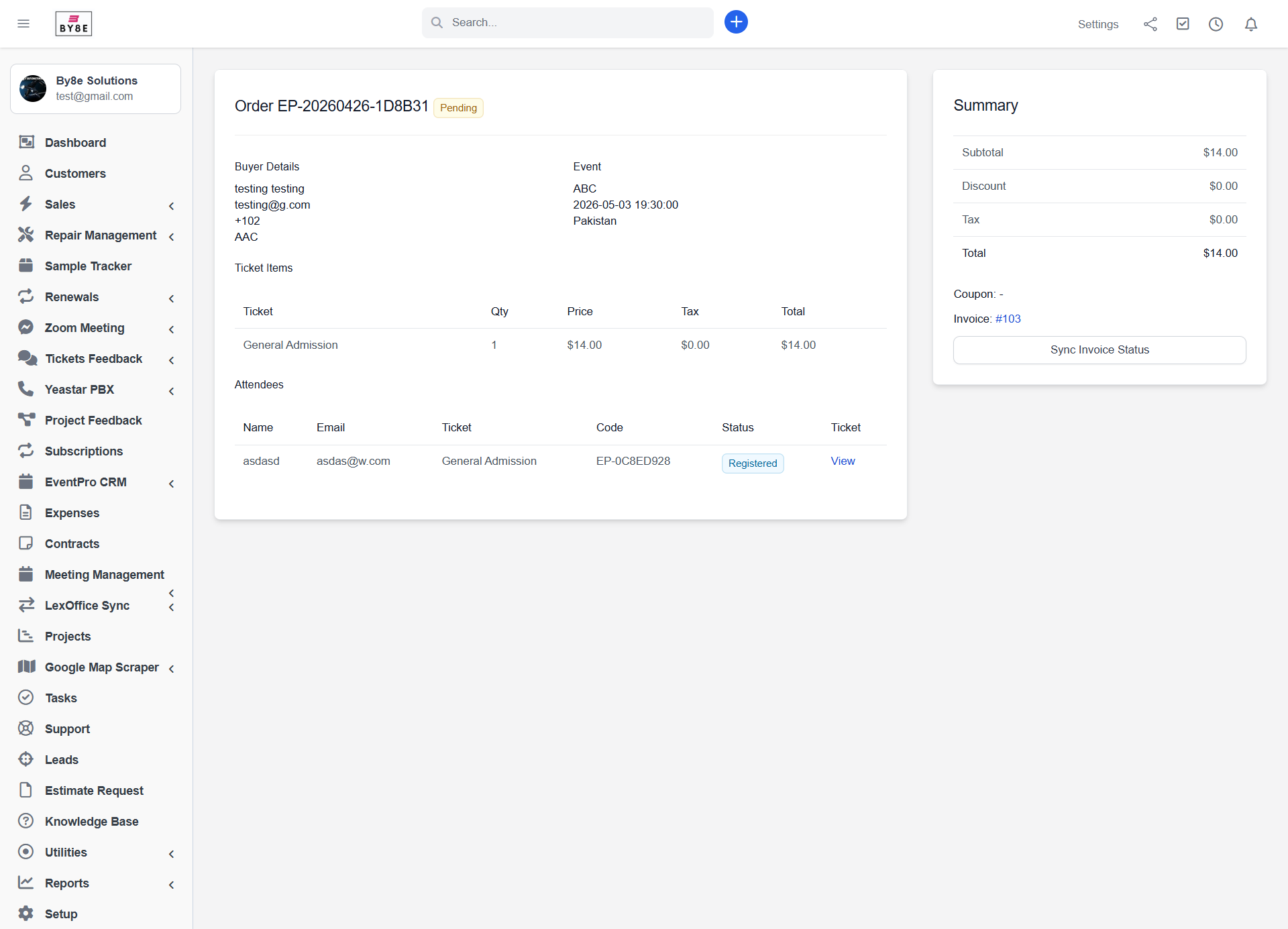
- Admin order detail screen with invoice link and payment sync option.
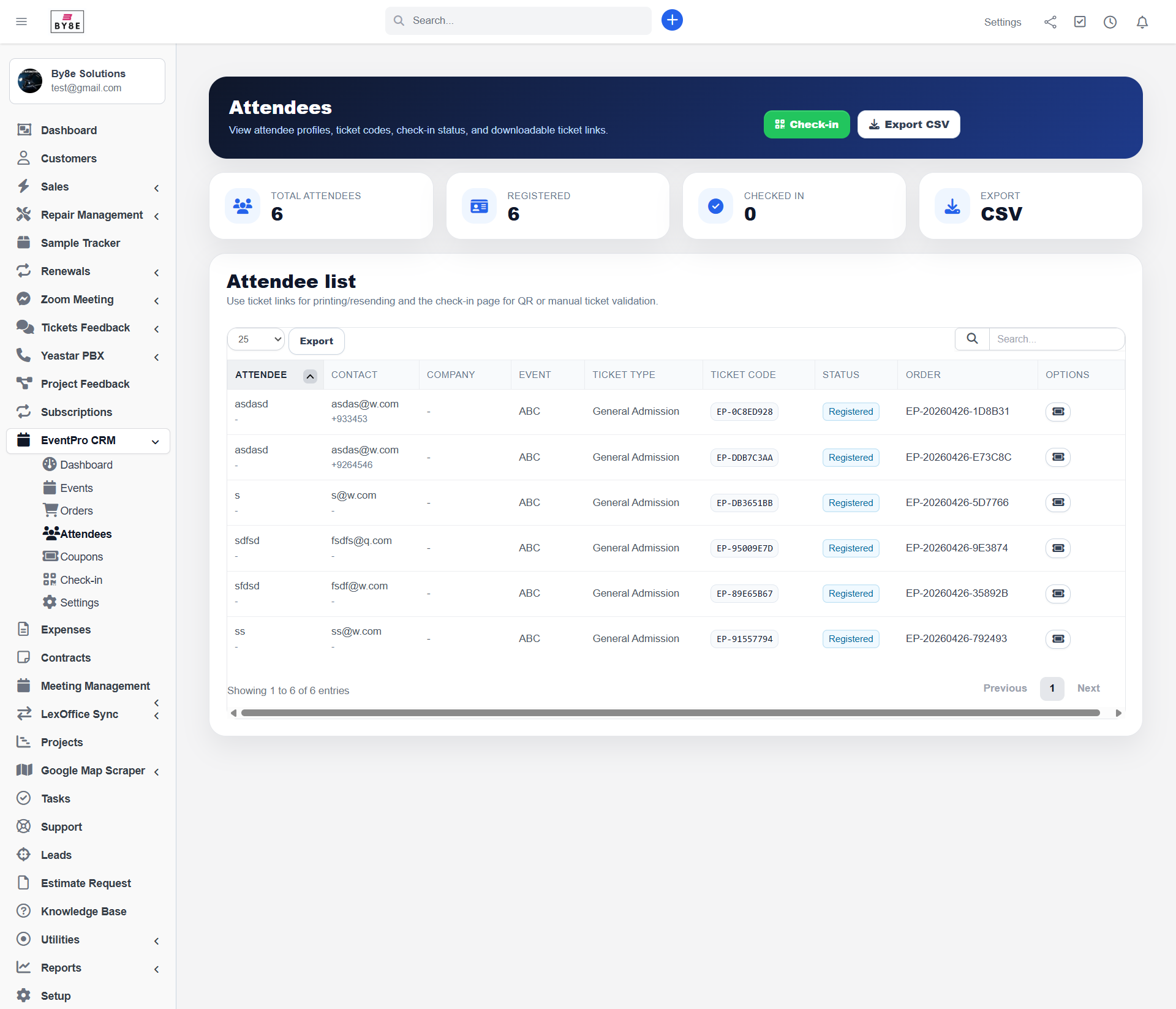
- Attendee list with ticket code, status, event, ticket type, and ticket link.
- CSV attendee export.
- Printable ticket pages with unique ticket code and QR-friendly verification content.
- Check-in / kiosk mode for ticket validation.
- Manual check-in and check-out by ticket code.
- Public/customer visibility rules to protect private and draft events.
5. Installation
- Extract the module package.
- Upload the
eventpro_crmfolder into your Perfex CRMmodulesdirectory. - Login to Perfex CRM as an administrator.
- Go to Setup → Modules.
- Find Event CRM and activate it.
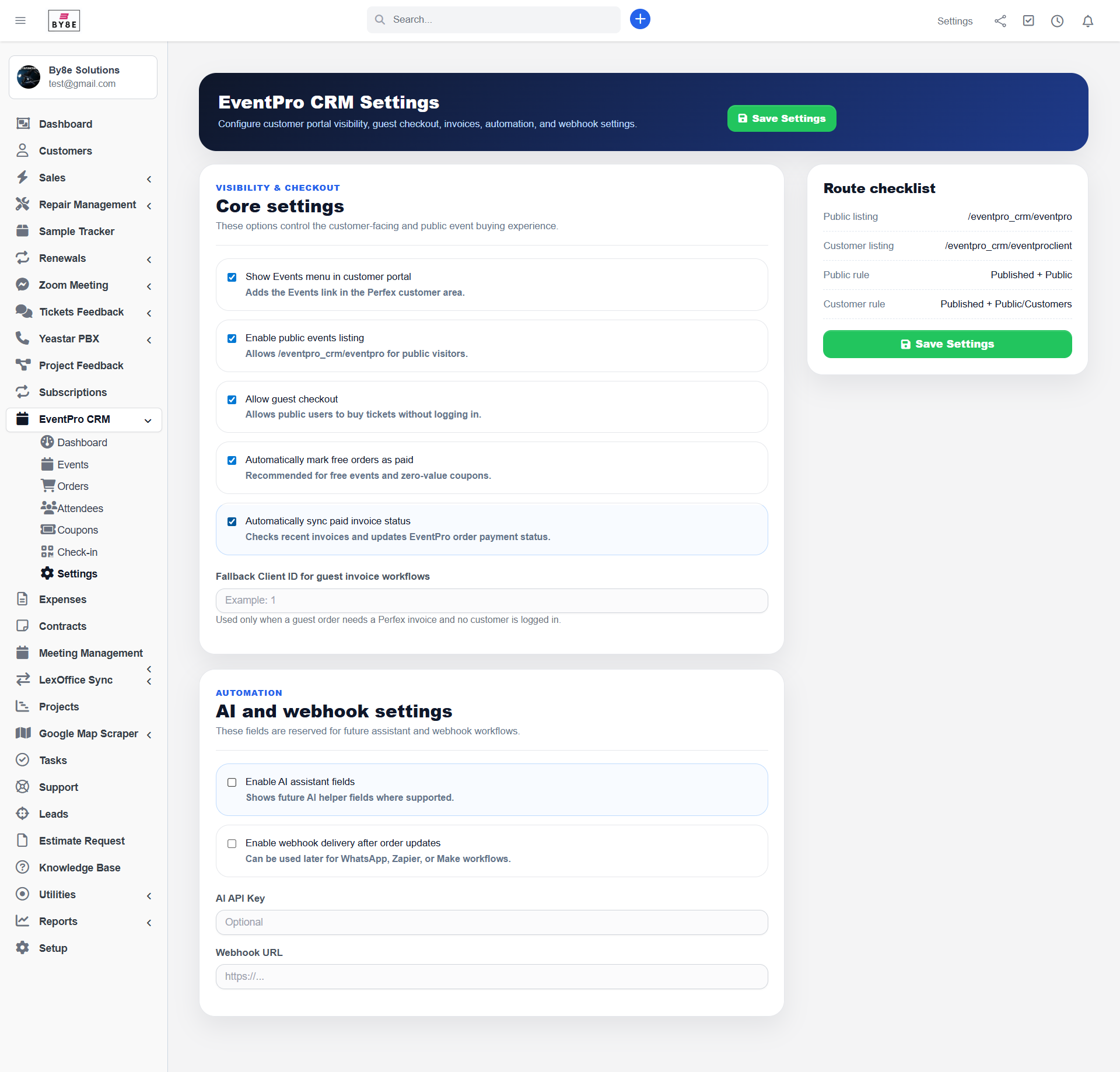
- Open Event CRM → Settings and configure the customer portal, public listing, guest checkout, invoice fallback client, and automation options.
- Create your first event from Event CRM → Events → New Event.
6. Initial Settings
Open Event CRM → Settings after activation and review these options before using the module.
| Setting | Purpose |
|---|---|
| Show Events menu in customer portal | Adds the Events link to the Perfex customer area menu. |
| Enable public events listing | Allows public visitors to access the public event listing page. |
| Allow guest checkout | Allows public visitors to buy tickets without customer login where enabled. |
| Automatically mark free orders as paid | Useful for free events or zero-value bookings. |
| Automatically sync paid invoice status | Helps Event update order payment status when the connected invoice is paid. |
| Fallback Client ID | Used when a guest booking needs an invoice and there is no logged-in customer. |
| Webhook URL | Reserved for integrations such as Zapier, Make, or WhatsApp workflows. |
7. Visibility Rules
The module separates public access, customer portal access, and admin/internal workflow states.
| Status | Visibility | Public Page | Customer Portal |
|---|---|---|---|
| Published | Public | Visible | Visible |
| Published | Customers | Hidden | Visible |
| Published | Private | Hidden | Hidden |
| Draft / Completed / Cancelled / Custom internal status | Any | Hidden | Hidden |
8. Admin Workflow
- Go to Event CRM → Settings and enable the required public/customer settings.
- Go to Event CRM → Events and click New Event.
- Enter the event basics: title, category, location, online URL, start/end date, description, visibility, and status.
- Upload a main event image and gallery images where required.
- Add one or more ticket types with price, tax, quantity, minimum/maximum limits, and status.
- Publish the event when it is ready for public/customer access.
- Review orders from Event CRM → Orders.
- Review attendees and export CSV from Event CRM → Attendees.
- Use Event CRM → Check-in on event day to validate attendee ticket codes.
9. Customer Workflow
- The logged-in customer opens the Events menu in the customer portal.
- The customer browses available events and clicks Details or Buy Ticket.
- The checkout screen auto-fills buyer details where customer/contact profile data exists.
- The customer selects ticket quantity.
- If group registration is enabled, attendee rows appear automatically based on the selected ticket quantity.
- The customer applies a coupon if available.
- The customer confirms the booking.
- The system creates the Event order, attendees, ticket codes, and invoice where configured.
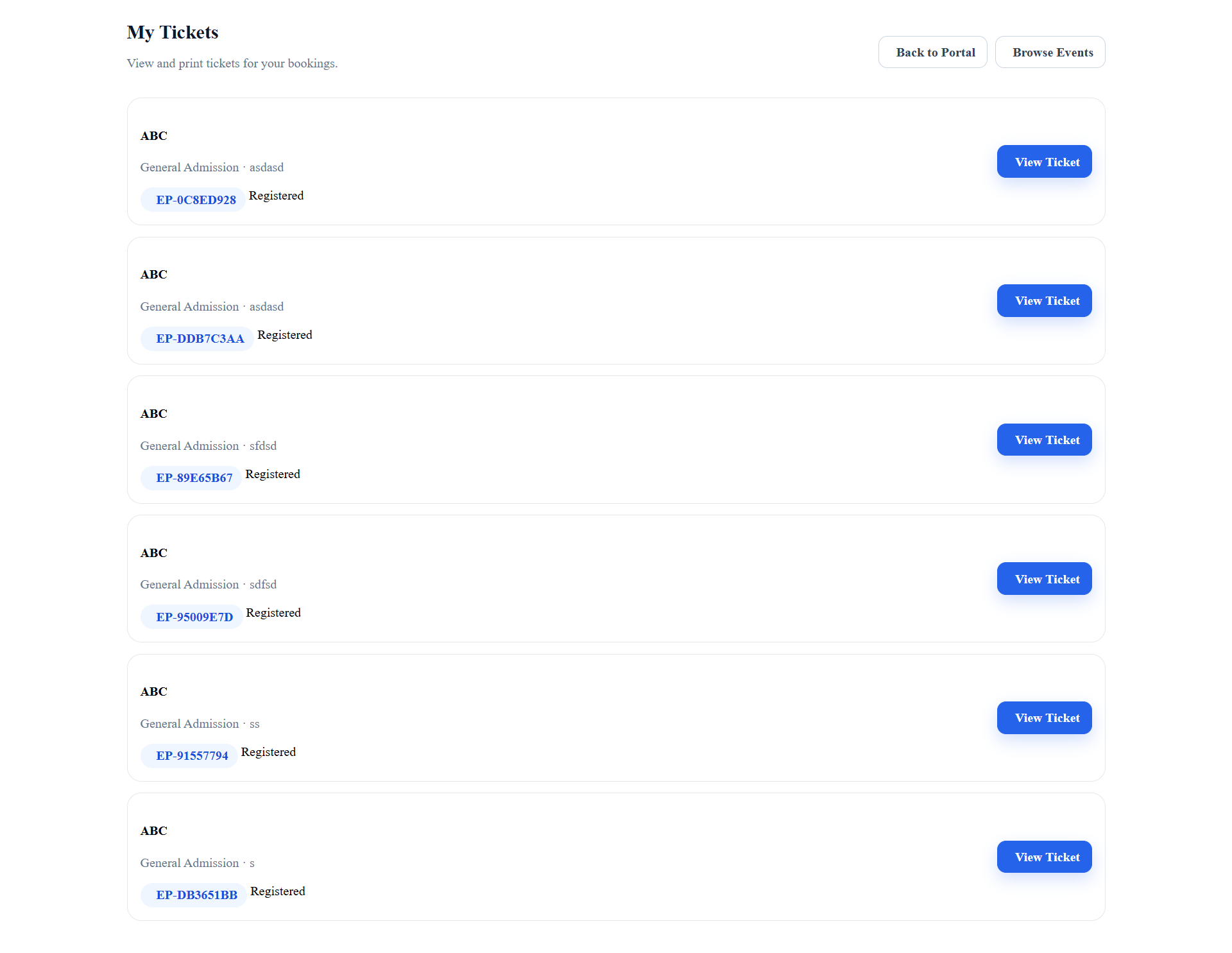
- The customer can open My Tickets to view and print tickets.
10. Invoices & Payments
Event CRM is designed to connect ticket purchases with Perfex invoices. For customer checkout, the invoice is generated under the logged-in customer where customer ID resolution and invoice settings are valid.
- Customer purchases can generate a linked Perfex invoice automatically.
- Admin order detail pages show the linked invoice number where available.
- Admins can manually create an invoice from the order detail page if one is missing.
- The invoice status can be synced back to the Event order.
- Free orders can be marked paid automatically if the setting is enabled.
11. Tickets & Check-in
Each attendee receives a unique ticket code. The attendee list and My Tickets area allow ticket viewing and printing. Event staff can validate ticket codes from the admin check-in screen.
Ticket codes are generated uniquely for each attendee, for example EP-0C8ED928.
Attendees can move through registered, checked in, checked out, or cancelled statuses depending on workflow.
12. Important URLs
| Area | URL / Route | Purpose |
|---|---|---|
| Admin dashboard | /admin/eventpro_crm | Main Event CRM admin dashboard. |
| Admin events | /admin/eventpro_crm/events | Manage event records. |
| Admin orders | /admin/eventpro_crm/orders | Review ticket orders and invoices. |
| Admin attendees | /admin/eventpro_crm/attendees | Review attendees and export CSV. |
| Admin coupons | /admin/eventpro_crm/coupons | Manage global and event-specific coupons. |
| Admin check-in | /admin/eventpro_crm/checkin | Validate ticket codes and check attendees in/out. |
| Public listing | /eventpro_crm/eventpro | Public event listing for published public events. |
| Public detail | /eventpro_crm/eventpro/view/{slug} | Public event detail page. |
| Customer events | /eventpro_crm/eventproclient | Customer portal event listing. |
| Customer detail | /eventpro_crm/eventproclient/view/{slug} | Customer portal event detail page. |
| Customer checkout | /eventpro_crm/eventproclient/checkout/{event_id} | Logged-in customer ticket checkout. |
13. Screenshots

14. Support Notes
When requesting support, provide the following details so the issue can be diagnosed quickly:
- Perfex CRM version
- PHP version
- Event CRM module version
- Whether the problem is on admin, public, or customer portal side
- Exact URL being tested
- Screenshot or screen recording
- Any PHP error log or browser console message
- Whether third-party invoice/payment modules are installed
For invoice-related issues, also share the customer ID, order ID, invoice settings, and whether the booking is guest or logged-in customer checkout.