1. Overview
ServiceDesk is a repair, service job and work order management module built for Perfex CRM. It is designed for businesses that receive customer requests, inspect items, assign staff, perform repairs or services, track progress, request customer approval and keep all job information organized.
Instead of managing repair jobs through spreadsheets, WhatsApp messages, paper slips or scattered notes, ServiceDesk gives your team a structured workflow inside Perfex CRM.
servicedesk. After activation, the main admin menu appears as
ServiceDesk in the Perfex CRM admin sidebar.
2. Why ServiceDesk?
Many service businesses already use Perfex CRM for customers, billing and internal management, but they still need a dedicated flow for service jobs and repairs. ServiceDesk fills that gap by adding a practical job management layer on top of your existing Perfex CRM setup.
Reduce Manual Follow-Ups
Track every job status, note and update in one place instead of chasing staff manually.
Improve Customer Experience
Give customers clear job tracking, approval options and professional job sheets.
Organize Technician Work
Assign jobs to staff, monitor workload and keep internal notes visible to the right team members.
3. Who Can Use It?
ServiceDesk is not limited to one repair niche. It is suitable for any business that handles customer-owned items, service requests, inspections, maintenance tasks or repair jobs.
4. Feature List
- ServiceDesk dashboard with useful job metrics.
- Service job and work order management.
- Customer and contact linking.
- Lead Source field using Perfex lead sources when available.
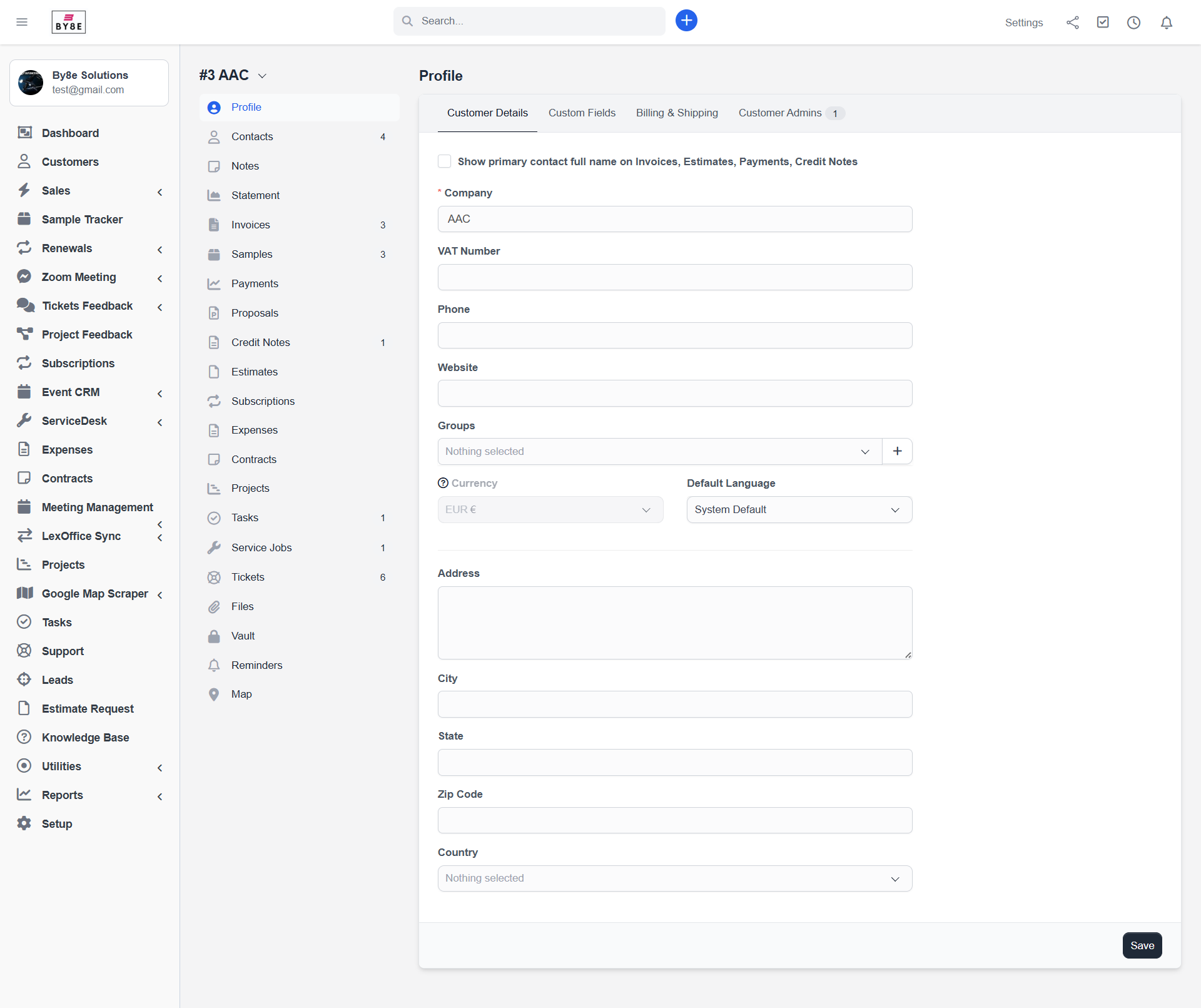
- Customer profile Service Jobs tab with count badge.
- Customer area page for linked jobs.
- Configurable job statuses.
- Configurable service categories.
- Staff / technician assignment.
- Item, asset or equipment details.
- Issue description and priority tracking.
- Diagnosis summary, fault found and suggested solution.
- Internal notes and customer-visible information.
- Attachments and job-related files.
- Activity timeline for job history.
- Checklist items and reusable checklist templates.
- Industry templates for common repair and service sectors.
- ServiceDesk custom fields.
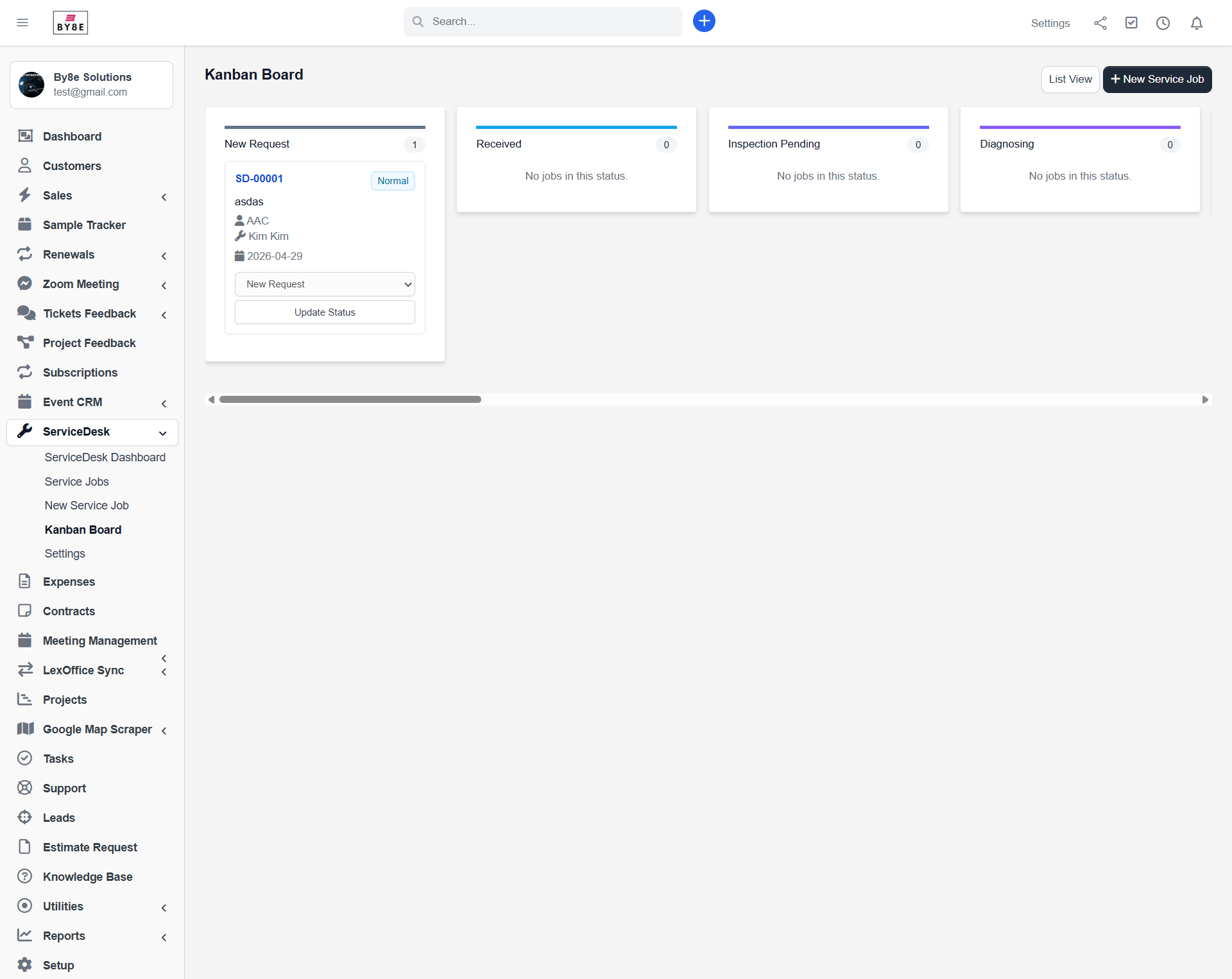
- Kanban board grouped by job status.
- Status workflow rules.
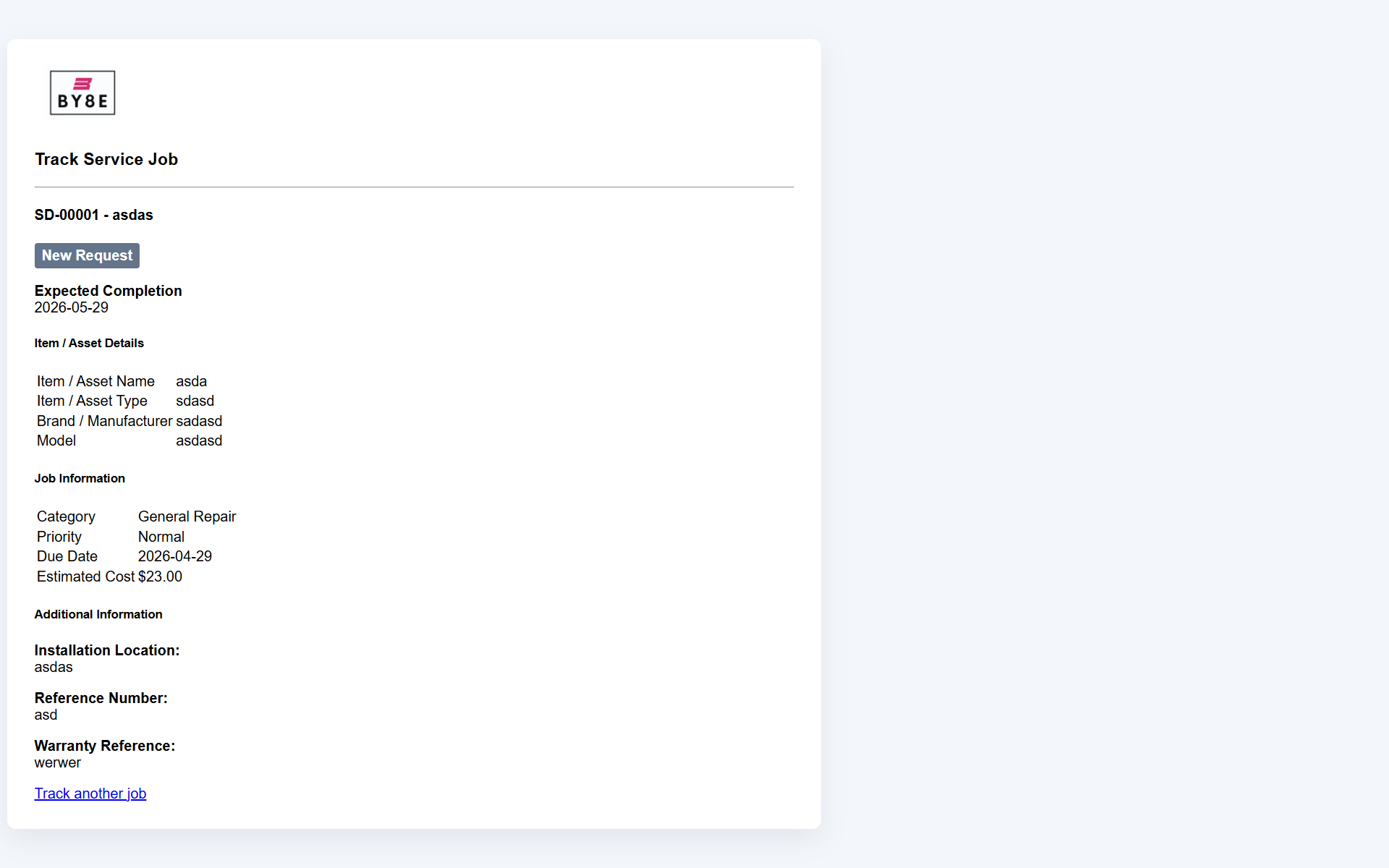
- Public tracking search and direct tracking links.
- Customer approval and rejection page.
- Printable job sheet with optional QR tracking.
- Estimate and invoice reference linking.
- Staff permissions.
- Clean module structure for Perfex CRM.
5. Installation
- Backup your Perfex CRM files and database.
- Extract the downloaded package.
- Upload the
servicedeskfolder to/modules/servicedesk/. - Login to Perfex CRM as an administrator.
- Go to Setup > Modules.
- Find ServiceDesk - Repair & Work Order Manager.
- Click Activate.
- Go to Setup > Staff > Roles and assign ServiceDesk permissions.
- Open ServiceDesk > Settings and configure statuses, categories and workflow options.
6. Upgrade Notes
ServiceDesk includes a versioned module structure and migration support. If you are updating from an older version, replace the module files carefully and allow Perfex CRM to run the module upgrade when prompted.
| Step | Action |
|---|---|
| 1 | Backup files and database before replacing module files. |
| 2 | Upload the new servicedesk module folder. |
| 3 | Open Setup > Modules. |
| 4 | Run the module database upgrade if Perfex CRM shows an upgrade prompt. |
| 5 | Clear browser cache and test the main workflows. |
7. Permissions
Permissions can be managed from Perfex CRM staff roles. Assign only the permissions required for each staff role.
| Permission | Purpose |
|---|---|
| View | Allows staff to view all service jobs. |
| View Own | Allows staff to view jobs assigned to them or created by them, depending on module logic. |
| Create | Allows staff to create new service jobs. |
| Edit | Allows staff to edit service jobs, status, notes, diagnosis and related details. |
| Delete | Allows staff to delete service jobs where permitted. |
| Manage | Allows staff to manage settings, statuses, categories, custom fields, checklists and templates. |
8. Settings
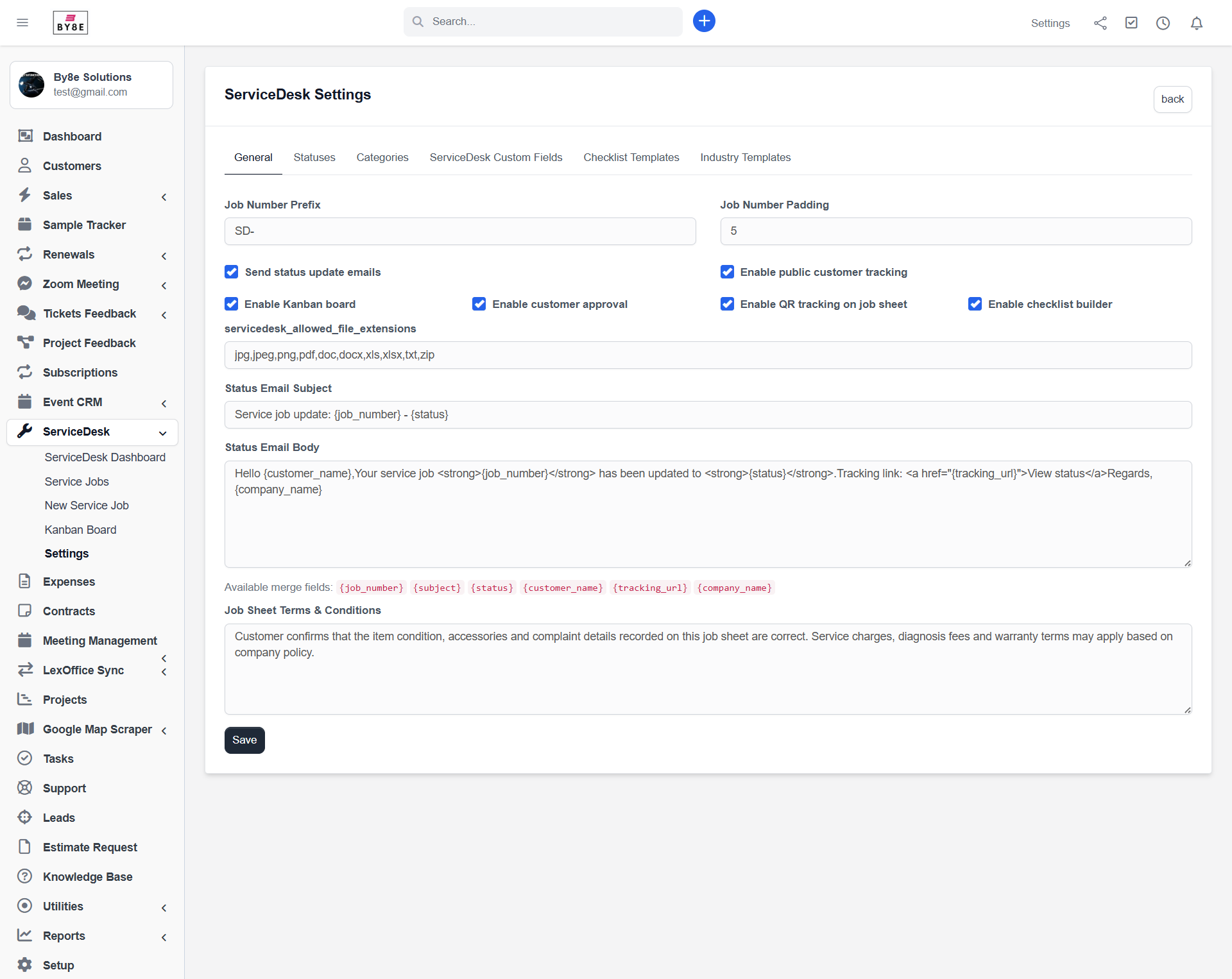
After activation, go to ServiceDesk > Settings and review the configuration options. This is where you can adapt the module to your business workflow.
Status Workflow
Create and manage statuses such as Received, Diagnosing, In Progress, Waiting Approval and Completed.
Categories
Define service categories based on your business, such as repair, installation, maintenance or inspection.
Checklist Templates
Create reusable intake, diagnosis, quality check and delivery checklists.
Industry Templates
Use templates to prepare workflows for different industries and service types.
Tracking & Approval
Enable customer tracking and approval flows where needed.
Job Sheet Options
Use printable job sheets for customer handover, workshop reference and QR tracking.
9. Admin Workflow
A typical ServiceDesk job follows a practical service lifecycle from customer request to completion.
- Create or select a Perfex customer and contact.
- Create a new ServiceDesk job from the sidebar or customer profile.
- Enter job information, item/asset details, issue description, priority and due date.
- Assign the job to a staff member or technician.
- Add diagnosis details, checklists, internal notes and attachments.
- Update job status as the work progresses.
- Use the Kanban board for quick visual status tracking.
- Print the job sheet when needed.
- Request customer approval if the job requires confirmation.
- Link estimate and invoice references where applicable.
- Complete the job and keep the full activity history available for reference.
10. Customer Features
ServiceDesk includes customer-facing features to help reduce manual calls and improve customer communication.
- Customer profile tab in the admin area showing jobs linked to that customer.
- Count badge in the customer profile menu for quick visibility.
- Customer area page where logged-in customers can view their linked service jobs.
- Public tracking search for customers where tracking is enabled.
- Direct tracking link that can be shared with customers or printed on job sheets.
11. Approval Flow
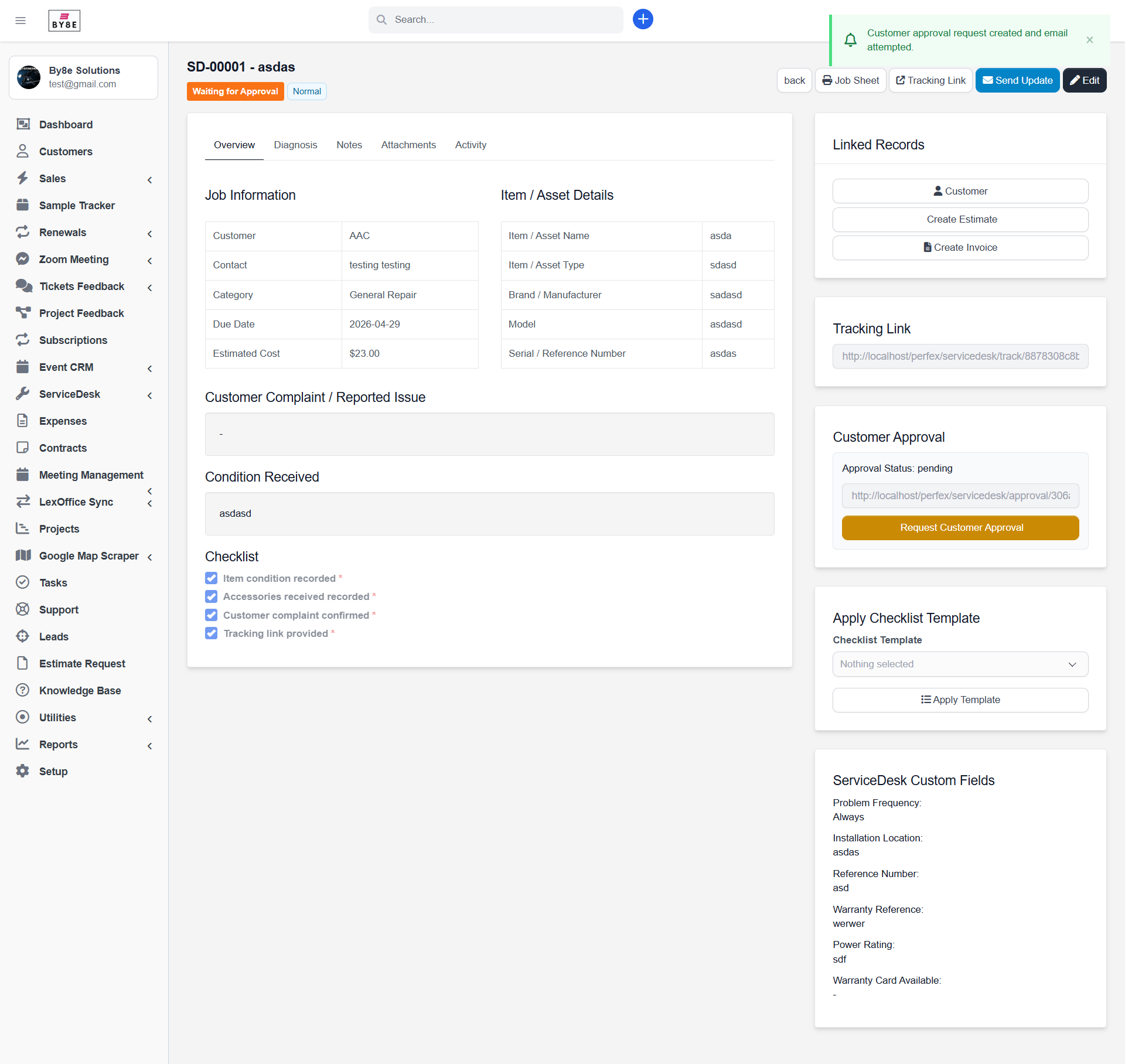
Some service jobs require customer approval before work continues. ServiceDesk provides a simple approval flow.
- Admin opens a service job.
- Admin requests customer approval when approval is enabled.
- The module generates a secure approval token.
- Customer opens the approval link.
- Customer approves or rejects the request and can leave a comment.
- The activity timeline records the customer response.
12. Important URLs
| Area | URL |
|---|---|
| Admin dashboard | /admin/servicedesk |
| Service jobs | /admin/servicedesk/jobs |
| New job | /admin/servicedesk/job |
| Kanban board | /admin/servicedesk/kanban |
| Settings | /admin/servicedesk/settings |
| Tracking search | /servicedesk/search |
| Direct tracking | /servicedesk/track/{tracking_key} |
| Customer approval | /servicedesk/approval/{approval_token} |
| Customer area | /servicedesk_client |
13. Screenshots
The screenshots below show the main ServiceDesk screens included in this documentation package. You can replace these images with your final demo screenshots before submitting the item to CodeCanyon.
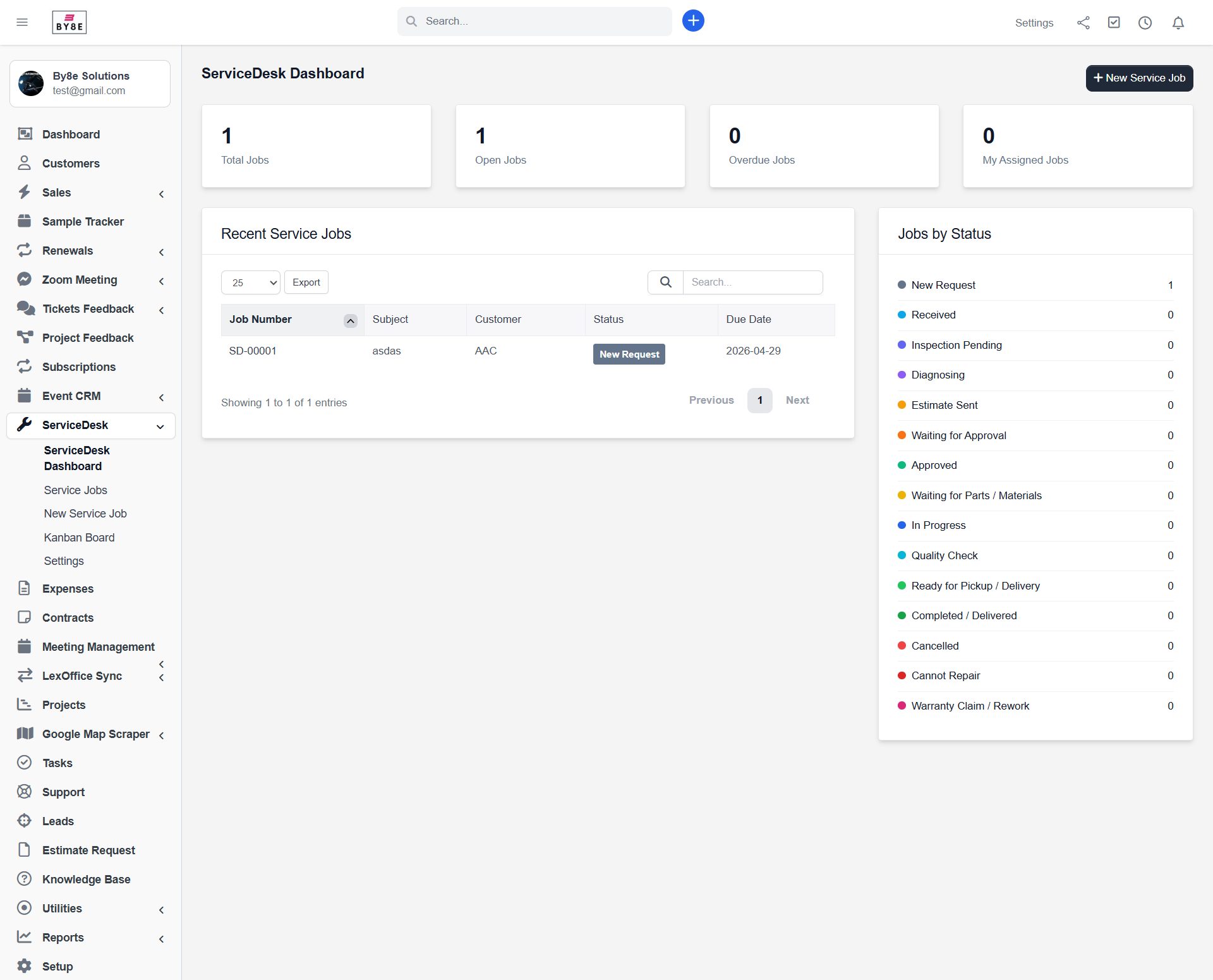
Dashboard
Quick overview of service jobs, statuses and repair/work order activity.
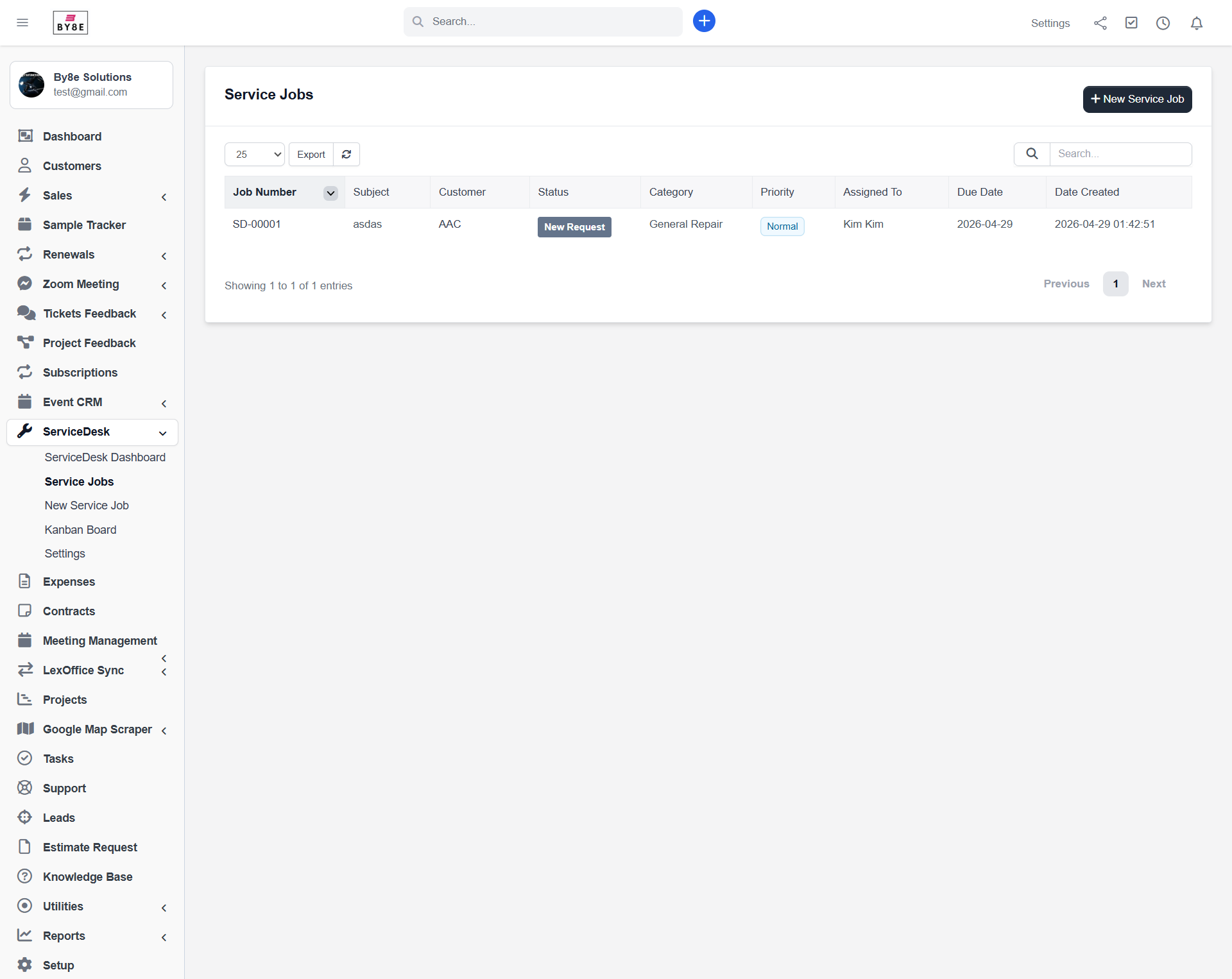
Service Jobs List
Manage repair jobs and work orders from one central listing screen.
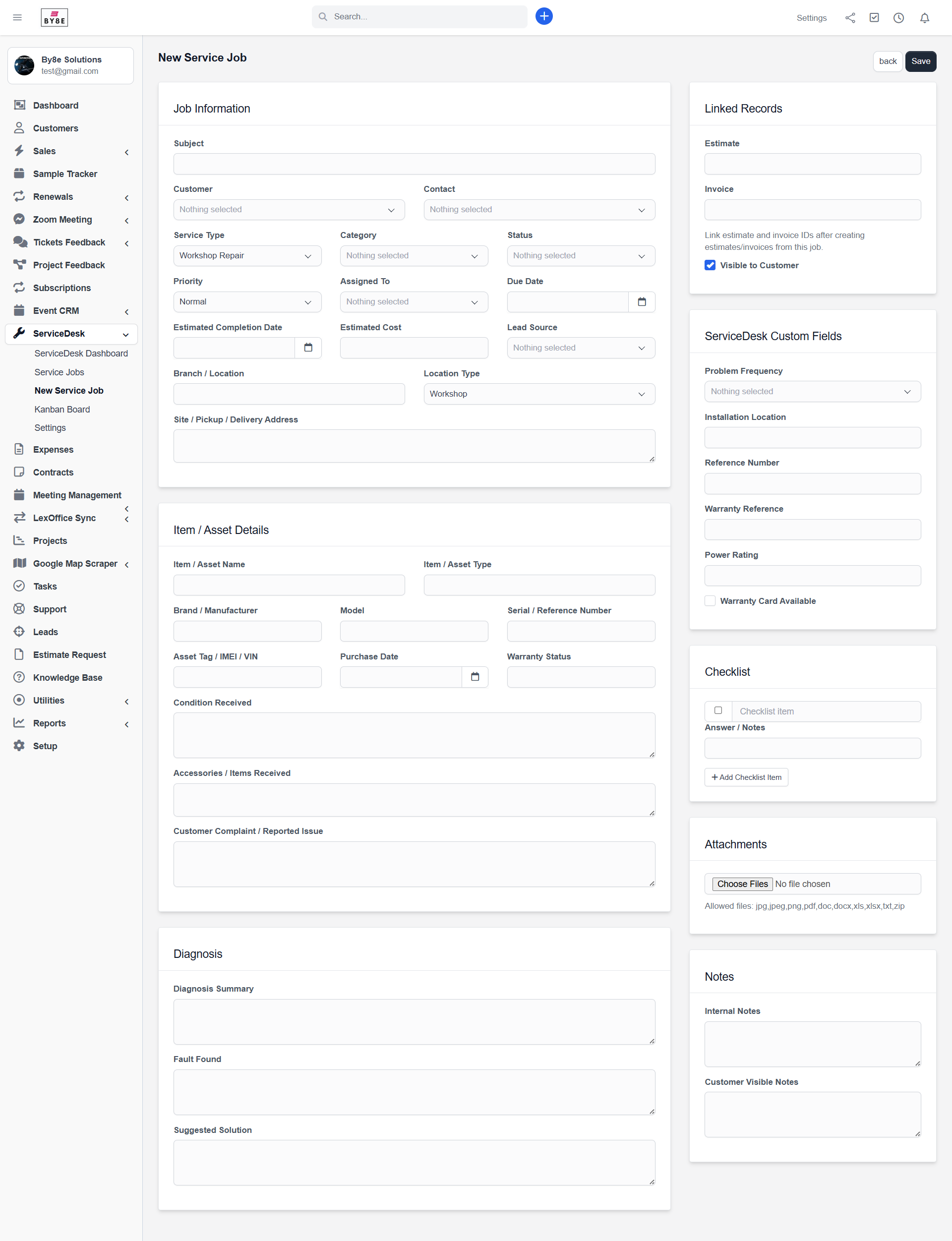
Create Service Job
Create customer-linked jobs with contact, item, priority, category and status details.
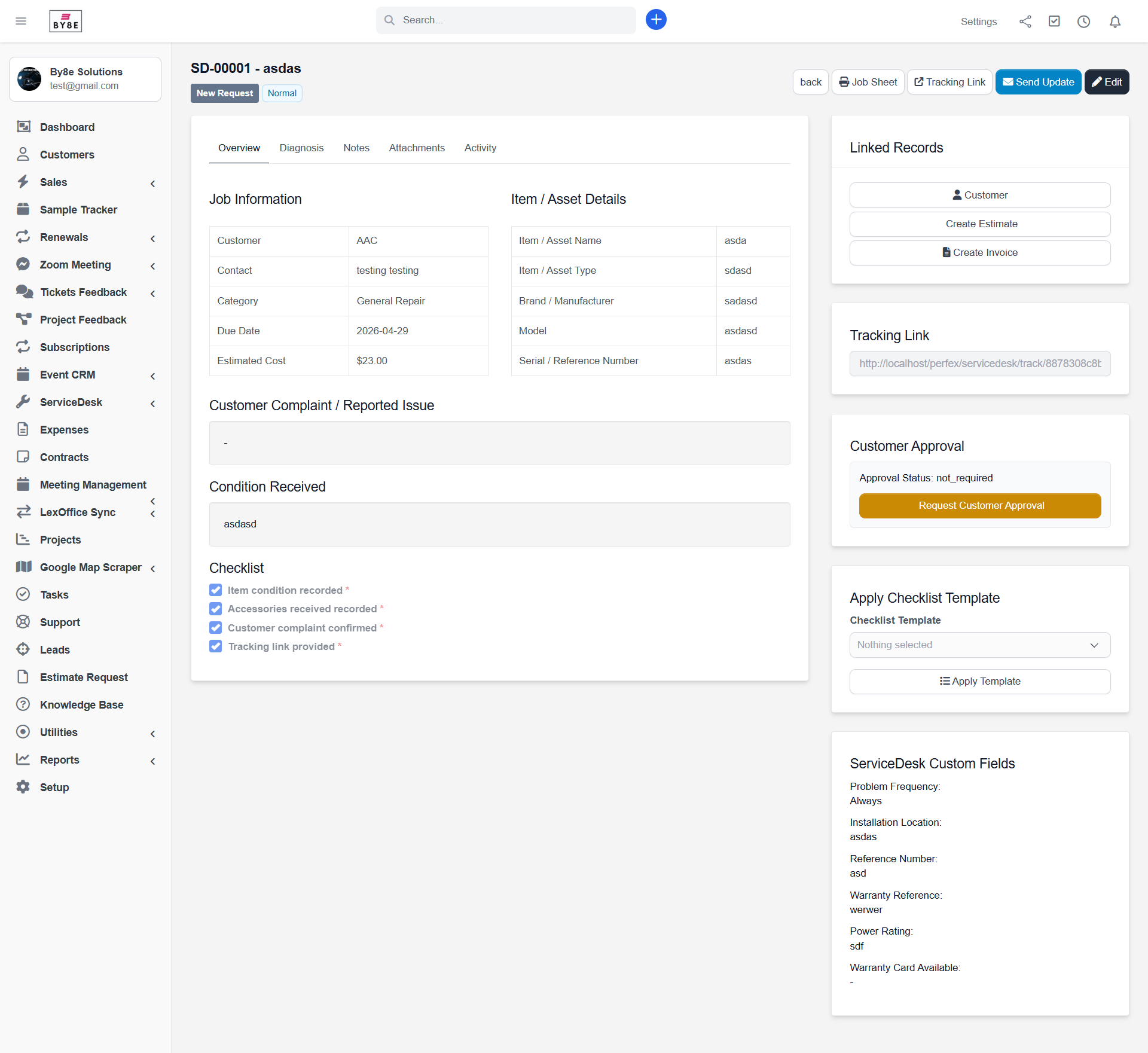
Job Detail
View diagnosis, notes, attachments, linked records, checklist and activity timeline.
Kanban Board
Visual status-based job board for faster operational tracking.
Settings
Configure statuses, categories, checklists, industry templates and workflow options.
Customer Profile Tab
Show customer-specific service jobs directly inside the Perfex customer profile.
Public Tracking
Allow customers to check job status using the tracking flow where enabled.
Customer Approval
Customer-facing approval and rejection screen for jobs requiring confirmation.
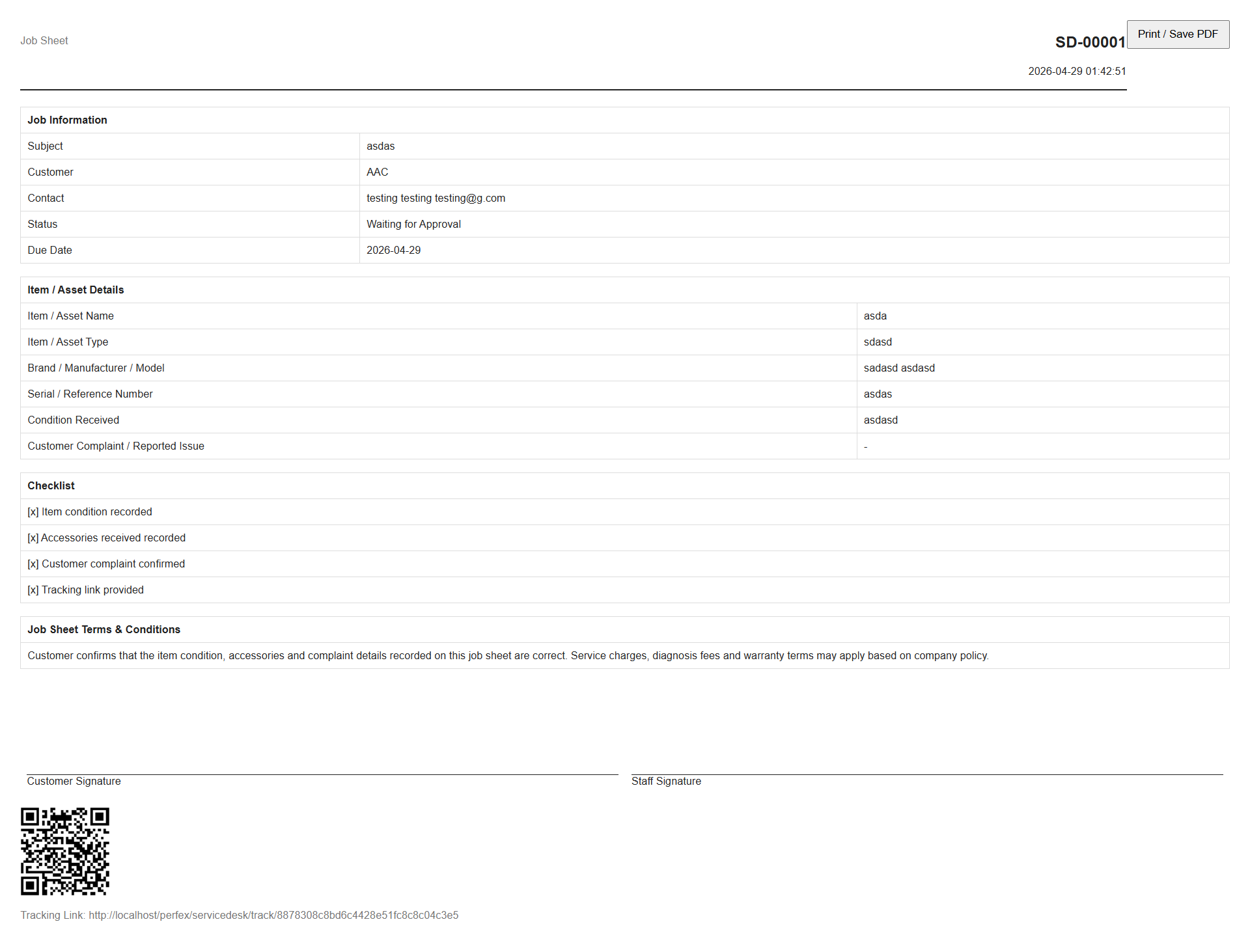
Printable Job Sheet
Professional job sheet for workshop handover, customer receipt or tracking reference.
14. Roadmap
ServiceDesk is designed as a growing repair, service job and work order management solution for Perfex CRM. The current version focuses on the core service workflow, customer-linked jobs, statuses, staff assignment, diagnosis, checklists, tracking, customer approval and job sheets.
Version 1.2 - Parts, Materials & Job Costing
Parts & Materials Management
Add parts, materials or consumables to service jobs and track what was used during repair or service work.
Perfex Items Integration
Use existing Perfex items for parts, labour, service charges and repair-related billing lines.
Cost & Selling Price
Track internal cost, customer price, quantity used and basic job profitability.
Low Stock Alerts
Optional stock visibility for frequently used repair parts and workshop materials.
Version 1.3 - Pickup, Delivery & Scheduling
Pickup & Delivery Flow
Manage pickup requests, delivery requests, assigned staff, addresses, charges and delivery status.
Appointment Calendar
Schedule service visits, technician appointments, pickup slots, delivery slots and expected completion dates.
Field Service Support
Improve support for businesses that repair or service items at the customer location.
Technician Schedule View
Give staff a clearer view of assigned jobs, dates and upcoming service work.
Version 1.4 - Warranty & Recurring Maintenance
Warranty Management
Set warranty periods, warranty terms, warranty status and warranty expiry dates for completed jobs.
Warranty Claim Jobs
Create a new claim or rework job linked to the original service job.
Recurring Maintenance
Create scheduled service jobs for monthly, quarterly, yearly or custom maintenance cycles.
Service Contract Support
Support customers who need ongoing maintenance, equipment checks or routine service visits.
Future Premium Enhancements
WhatsApp Notifications
Send job updates, approval links, ready-for-pickup alerts and payment reminders through WhatsApp.
SMS Notifications
Add optional SMS communication for customers who prefer mobile updates.
QR / Barcode Labels
Print QR or barcode labels for job sheets, items, assets and workshop tracking.
Technician Mobile View
Provide a simplified mobile-friendly screen for technicians to view jobs, update status and upload photos.
Multi-Branch Support
Manage service jobs, technicians, reports and inventory separately across multiple branches or locations.
Advanced Reports
Track technician performance, overdue jobs, service revenue, approval delays, category performance and job profitability.
Customer Feedback
Collect customer ratings and comments after job completion.
AI-Assisted Service Notes
Optional AI features for summarizing diagnosis notes, preparing customer messages and suggesting repair descriptions.
15. Support Notes
Before requesting support, please confirm that your module path is correct, permissions are assigned and your Perfex CRM installation is working normally.
| Before Contacting Support | Check |
|---|---|
| Module path | Confirm the module is uploaded to /modules/servicedesk/. |
| Activation | Confirm the module is active from Setup > Modules. |
| Permissions | Confirm staff roles have ServiceDesk permissions. |
| Errors | Provide exact error message, screenshot, Perfex version and PHP version. |
| Reproduction Steps | Share clear steps to reproduce the issue. |