
1. Module Overview
Telegram Automation is a Perfex CRM module that allows administrators to send notifications from Perfex CRM to Telegram. It supports personal chats, Telegram groups, and Telegram channels.
The module is designed around six areas: Settings, Destinations, Smart Rules, Templates, Staff Linking, and Logs.
2. Main Features
- Telegram Bot Token configuration
- Enable or disable module from settings
- Optional daily digest configuration
- Webhook URL generation for Telegram bot webhook
- Send test message to a chat ID or group ID
- Create notification destinations
- Support for group, channel, and personal destinations
- Smart rules for routing different events
- Assigned staff notification mode
- Message templates by event type
- HTML and Markdown parse mode support
- Default template support
- Staff code generation for Telegram linking
- Notification logs with status and attempts
- Retry failed notification action
3. Installation
- Upload the module folder into your Perfex CRM
modulesdirectory. - Login to Perfex CRM as administrator.
- Go to Setup → Modules.
- Find Telegram Automation and activate it.
- Open the module from the admin menu.
- Go to the Settings tab and add your Telegram bot token.
- Create at least one destination.
- Create or review templates.
- Create smart rules.
- Test the integration by sending a test message.
4. Basic Workflow
Add your Telegram bot token in Settings and save it.
Define the chat IDs or group IDs where notifications should be sent.
Map Perfex events to destinations and templates.
Customize the message content for each supported event.
Generate linking codes so staff can connect their Telegram accounts.
Review sent, pending, or failed notifications from the logs tab.
5. Settings Tab
The Settings tab is the main configuration area of the module.
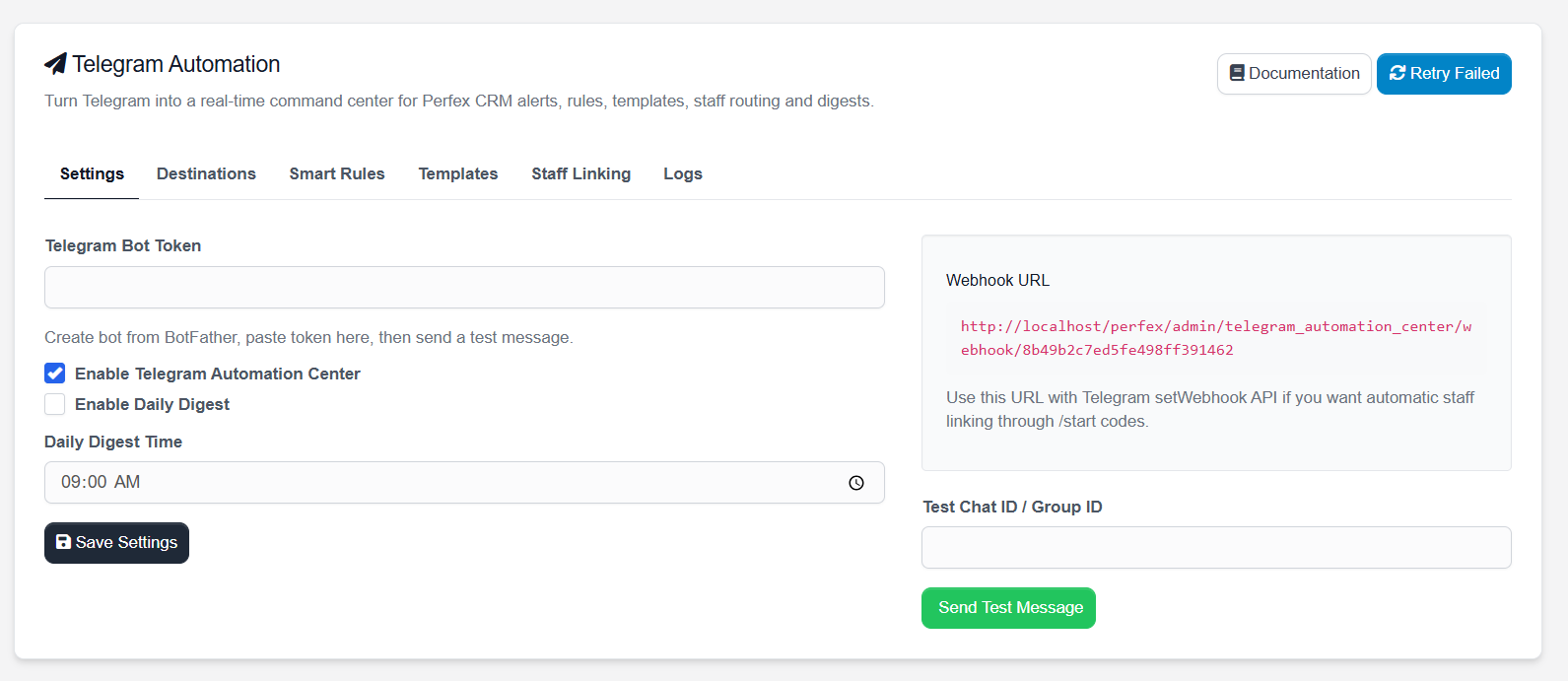
| Field / Area | Description |
|---|---|
| Telegram Bot Token | Paste the bot token generated from BotFather. |
| Enable Telegram Automation Center | Turns the module on or off. |
| Enable Daily Digest | Allows scheduled daily digest notifications. |
| Daily Digest Time | Choose the time when the digest should run. |
| Webhook URL | Use this URL with Telegram setWebhook API for automatic staff linking via bot messages. |
| Test Chat ID / Group ID | Enter a Telegram personal chat ID, group ID, or channel ID to send a test message. |
| Retry Failed | Retries failed notifications from the queue/logs. |
6. Destinations Tab
A Destination is a saved Telegram target where notifications can be sent.
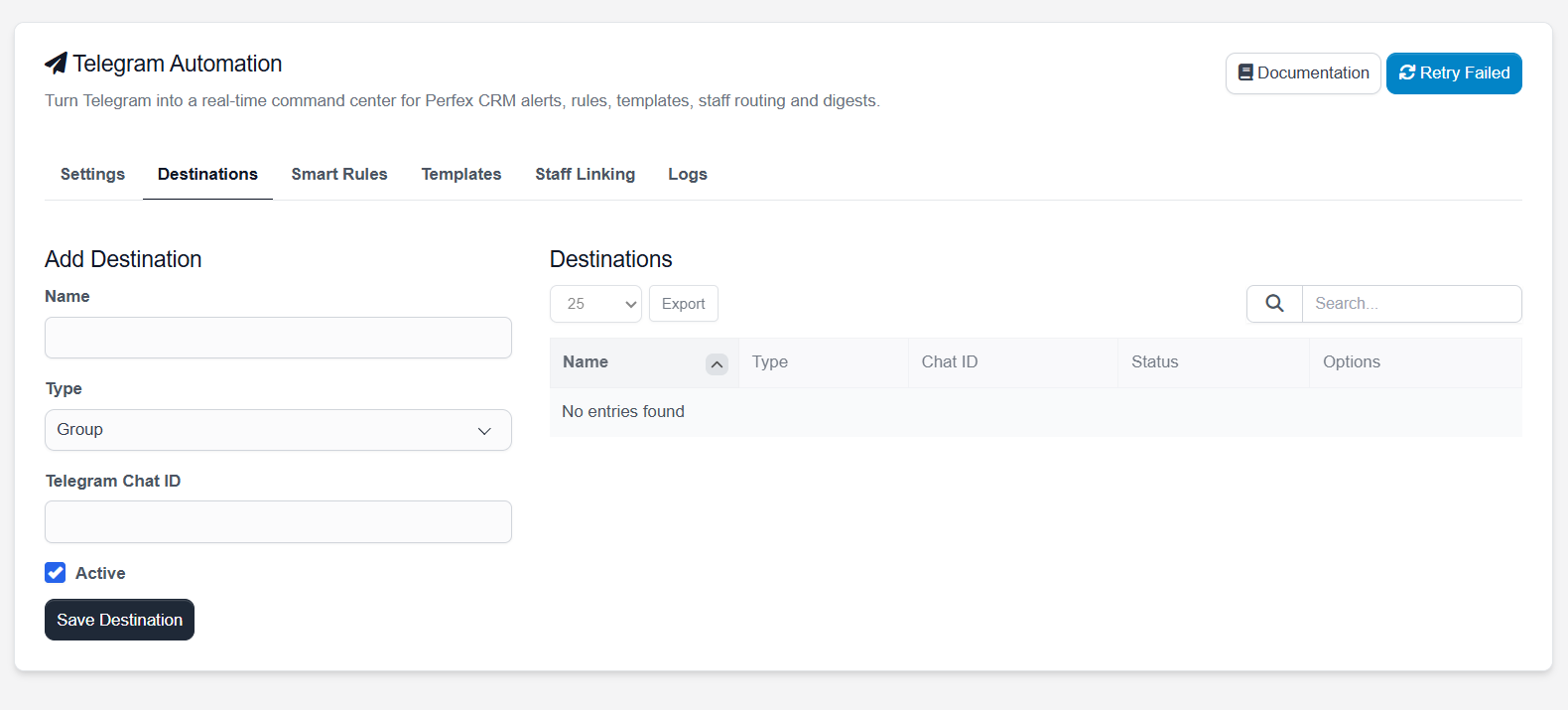
| Field | Description |
|---|---|
| Name | A friendly name for the destination, such as “Sales Team Group” or “Support Alerts”. |
| Type | Choose Group, Channel, or Personal. |
| Telegram Chat ID | The actual Telegram chat ID, group ID, or channel ID. |
| Active | Marks the destination as enabled or disabled. |
7. Smart Rules Tab
The Smart Rules tab lets you define what should happen when a Perfex CRM event occurs.
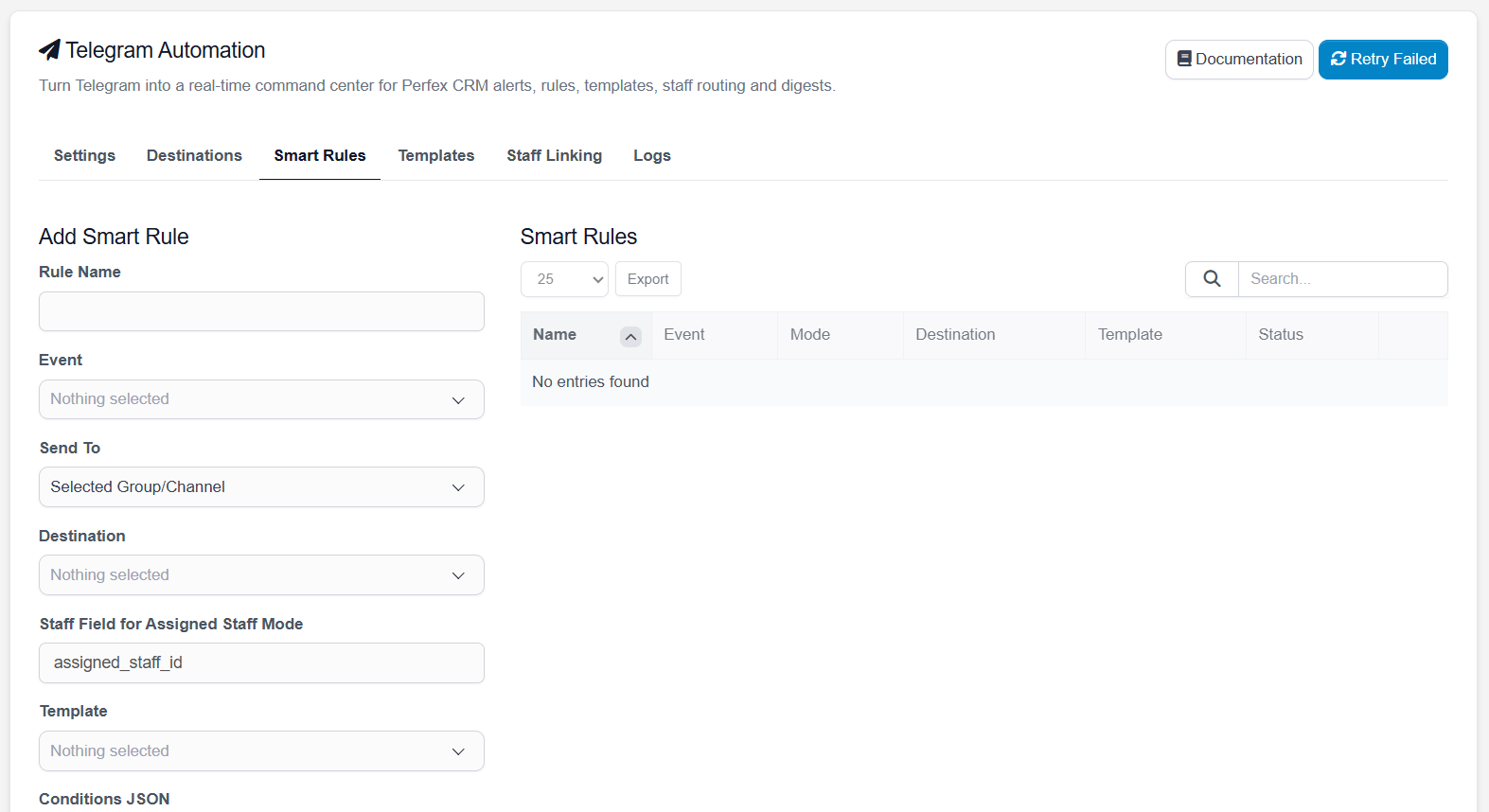
| Field | Description |
|---|---|
| Rule Name | Friendly name for the rule. |
| Event | Select the Perfex event that should trigger the notification. |
| Send To | Choose Selected Group/Channel or Assigned Staff Telegram. |
| Destination | Used when “Selected Group/Channel” is chosen. |
| Staff Field for Assigned Staff Mode | Field key used to identify the assigned staff member, e.g. assigned_staff_id. |
| Template | Select the message template to use for this event. |
| Conditions JSON | Optional JSON-based condition filtering for advanced use cases. |
| Priority | Rule processing order or importance. |
| Active | Enable or disable the rule. |
8. Templates Tab
Templates define the message content that will be sent to Telegram.
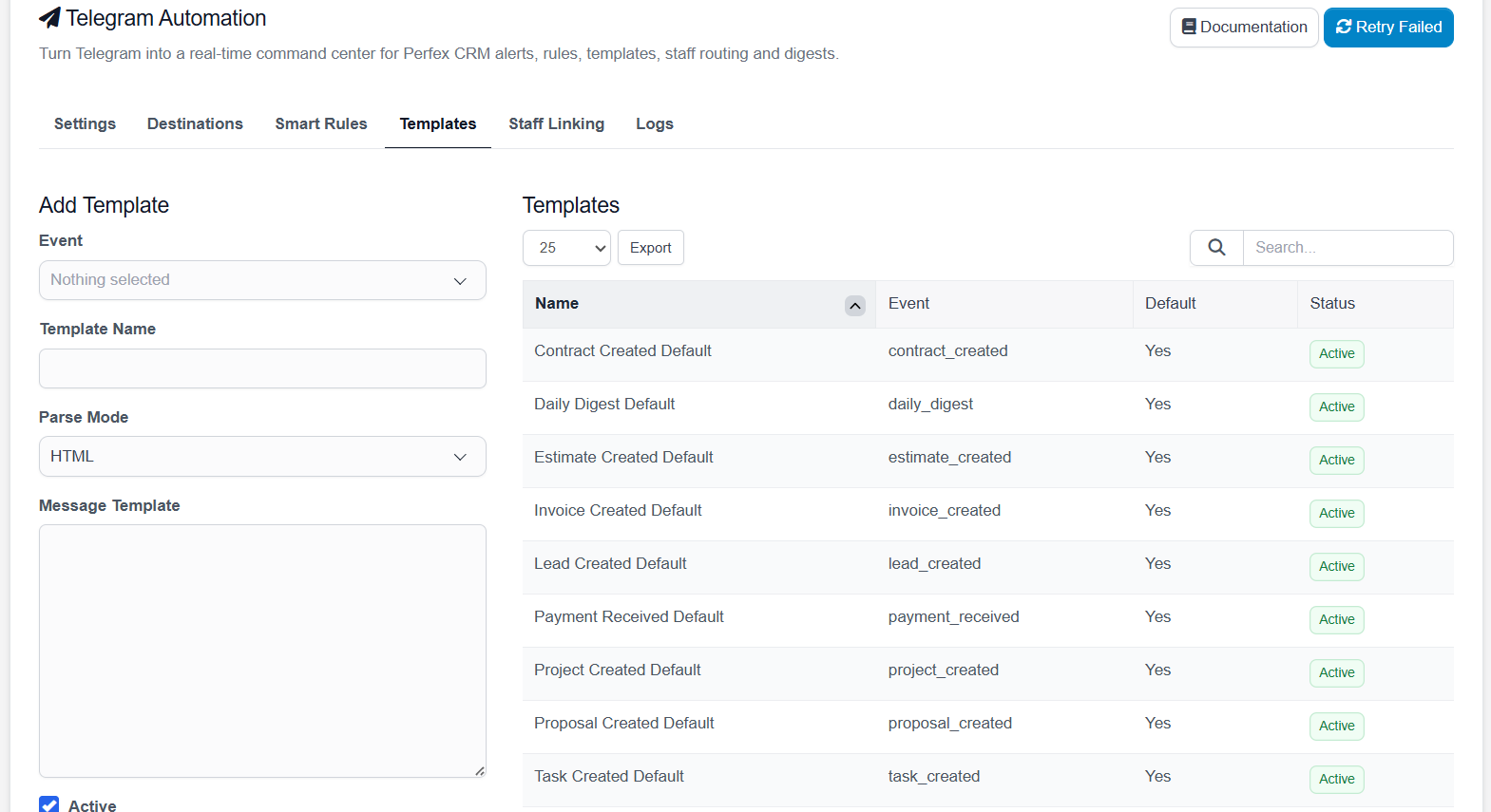
| Field | Description |
|---|---|
| Event | Choose which event this template belongs to. |
| Template Name | A readable template title. |
| Parse Mode | Telegram parse mode: HTML or Markdown. |
| Message Template | The message body that will be sent to Telegram. |
| Active | Enable or disable the template. |
Common Dynamic Fields
9. Staff Linking Tab
Staff Linking allows individual staff members to receive notifications directly on their Telegram accounts.
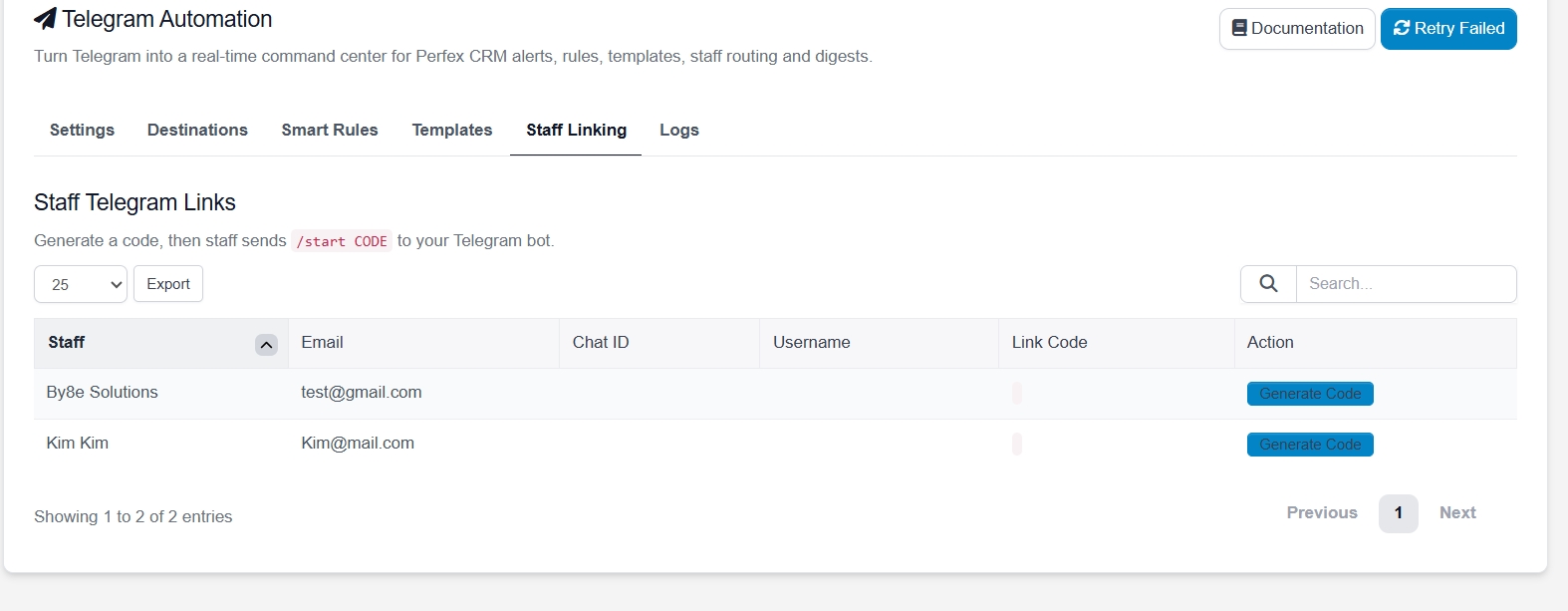
How staff linking works
- The administrator clicks Generate Code for a staff member.
- The system creates a unique linking code.
- The staff member opens the Telegram bot.
- The staff member sends
/start CODEto the bot. - The bot links that Telegram chat ID with the staff account.
10. Logs Tab
The Logs tab helps administrators monitor sent notifications and troubleshoot delivery issues.
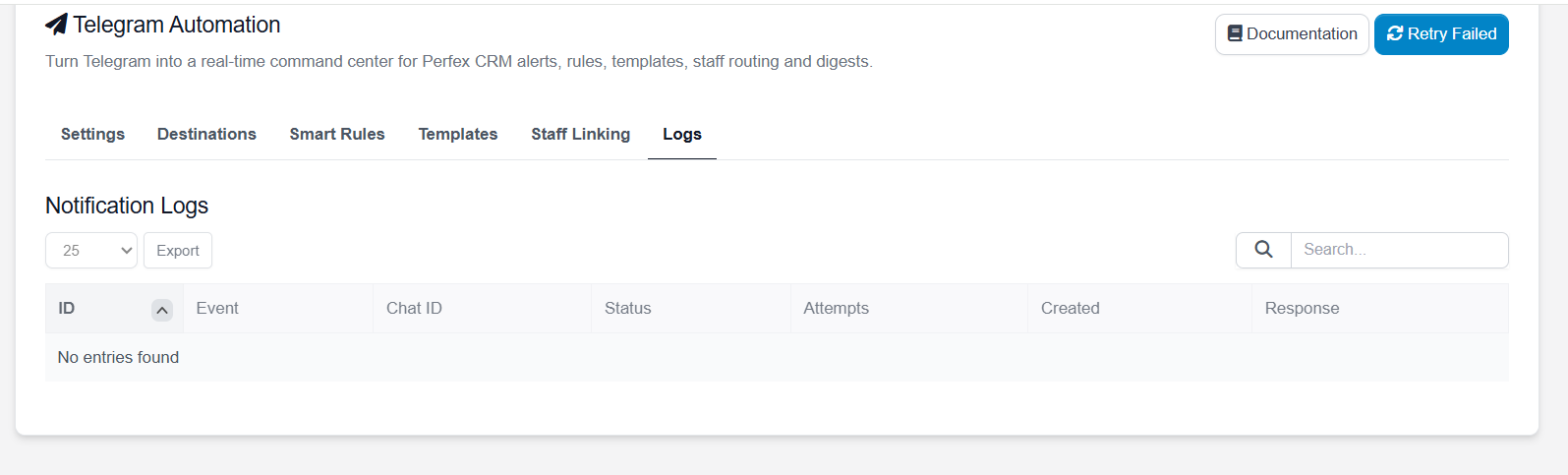
| Column | Description |
|---|---|
| ID | Internal log record ID |
| Event | Triggered event name |
| Chat ID | Destination chat ID |
| Status | Notification status such as sent, failed, or pending |
| Attempts | How many times the system tried to send the message |
| Created | Log creation time |
| Response | Telegram API or internal response message |
11. Webhook & Staff Linking
The module provides a webhook URL in the Settings tab. This URL can be used with the Telegram Bot API setWebhook method.
Once the webhook is configured correctly, your bot can receive messages such as /start CODE, which are then used for automatic staff linking.
Typical flow
- Create a Telegram bot using BotFather.
- Save the bot token in the module settings.
- Copy the webhook URL from the Settings tab.
- Configure it in Telegram using the Bot API.
- Generate a code for a staff member.
- Have the staff member send
/start CODEto the bot.
12. Supported Events
The module includes support for common Perfex CRM event types. Default templates may already be available for these events.
13. Tips & Best Practices
Use names like “Sales Alerts”, “Support Team”, or “Finance Group” so rules stay easy to understand.
First send a test message from Settings to confirm the bot token and chat ID are correct.
Keep your message style professional and consistent across events.
If you want personal notifications for assigned staff, complete staff linking during setup.
14. Support Notes
If you need support, please provide these details:
- Perfex CRM version
- PHP version
- Module version
- Screenshots of the issue
- Error message or Telegram API response
- Steps to reproduce the issue